



















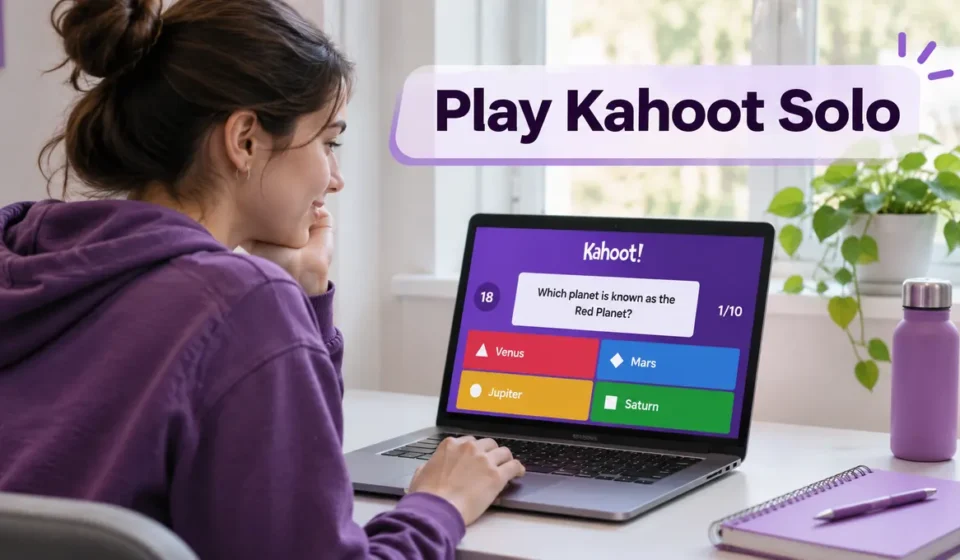

You find a Kahoot quiz about tomorrow’s science test, but nobody is hosting a game. You don’t have a PIN, and your classmates aren’t online. Can you still play?
Yes. Kahoot has single-player options that let you answer questions without waiting for a teacher or another participant. You can play a regular quiz against computer-generated opponents or choose a quieter experience designed for independent practice.
Learning how to play Kahoot solo is useful for homework revision, test preparation, or simply trying a quiz on your own. Here’s how to get started on a computer or mobile device, along with the features worth knowing before you play.
Quick Answer: How to Play Kahoot Solo
To play Kahoot solo, open a public quiz in Kahoot’s Discover section and select Play solo on a computer. Choose Classic Solo, Chill Art, Treasure Trove, or Tallest Tower. In the mobile app, open a quiz, tap View all, and pick a solo experience. No teacher, live host, or game PIN is needed. Many public quizzes work without signing in, although private and premium content may require access. For focused revision, use Flashcards or Learn. Offline practice requires downloading a quiz in the mobile app beforehand.
How to Play Kahoot Solo on a Computer
You can play Kahoot alone through a desktop browser without installing additional software. The main requirement is finding a quiz that you’re allowed to access.
Kahoot’s official web instructions, updated in October 2026, identify Play solo as the starting option for independent games.
Step 1: Find a Quiz You Want to Play
Open Kahoot’s official website and visit the Discover section. Search for a topic you’re studying, such as fractions, human anatomy, or American history.
Choose a quiz that matches your grade level and learning goal. A focused ten-question quiz about multiplication is often more useful for revision than a broad trivia game covering unrelated subjects.
You can narrow your results using available subject, grade, language, and content-access filters. Our Kahoot search guide explains how to find suitable quizzes.
Step 2: Select Play Solo
Open the quiz’s details page and look for the Play solo button. Clicking it displays the available single-player experiences.
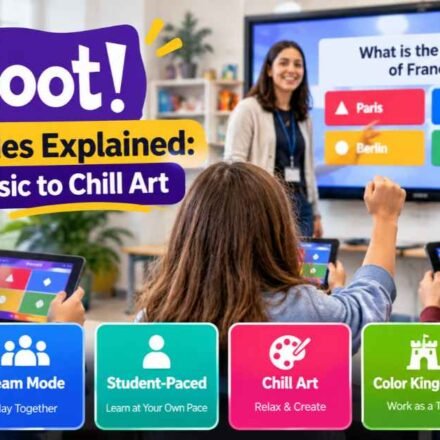
You may see Classic Solo, Chill Art, Treasure Trove, and Tallest Tower. Each uses quiz questions but presents the activity differently.
You don’t need to select Host or create a live session. Those options are intended for activities involving other participants.
Step 3: Start Classic Solo
If this is your first time playing alone, choose Classic Solo. It offers a familiar question-and-answer experience without requiring a second player.
The game opens a small lobby showing automatically generated participants. Choose a nickname and click OK, go! to begin.
You’ll answer questions while a scoreboard displays your performance alongside virtual players. Those opponents are computer-generated, not real people connecting to your game.
Step 4: Finish the Quiz and Review Your Answers
Read each question carefully and select the answer you believe is correct. Continue until the activity ends, then review your final result.
If you missed several questions, look up the correct explanations before replaying. Repeating a quiz without understanding your mistakes can lead to memorizing answers rather than learning the topic.
Browser-based solo games don’t generate standard host reports. You can replay activities, but shouldn’t expect the same long-term performance records available through hosted sessions.
How to Play Kahoot Solo on a Phone or Tablet
The Kahoot mobile app offers single-player games on supported Android and iOS devices. You can search for quizzes, start solo activities, and use additional study features from the same app.
The main difference from a desktop computer is where the solo options appear.
Find Solo Games in the Kahoot App
Follow these steps:
- Open the Kahoot mobile app.
- Visit Discover or choose a quiz from your Library.
- Open the quiz you want to play.
- Tap View all beside the available game experiences.
- Scroll to the solo modes.
- Choose an experience and start playing.
The app also provides a Let’s go! shortcut on its Home screen for exploring available games and study activities.
If the interface looks slightly different, check the selected quiz’s details page. Kahoot may change the layout of its navigation as the app is updated.
Can You Stop and Continue Later?
Kahoot’s mobile documentation confirms that supported solo progress is saved in the app. Unfinished activities can be resumed through the Active section on the Home screen.
You can also replay completed games and try to improve your previous high scores.
That progress is not the same as a teacher’s detailed game report. To resume locally saved activities reliably, continue using the same device and app.
Which Kahoot Solo Mode Is Best for You?
Kahoot has four main solo game experiences. They use questions from the selected quiz, but the activities between answers are different.
Choosing the right mode can make practice more enjoyable without changing the subject you’re studying.
| Solo Mode | How It Works | Best For |
|---|---|---|
| Classic Solo | Answer questions against virtual opponents | Traditional quiz practice |
| Chill Art | Earn paintbrushes and reveal a picture | Relaxed revision |
| Treasure Trove | Collect treasures after correct answers | Arcade-style gameplay |
| Tallest Tower | Earn blocks and build a tower | Game-based practice |
Classic Solo: Practice Against Virtual Players
Classic Solo follows the familiar Kahoot format. You answer questions, receive feedback, and see a scoreboard between rounds.
The virtual opponents make the session feel competitive, even though nobody else needs to join.
This mode is a sensible choice when you want to complete an entire quiz and check how many answers you know.
Chill Art: Complete a Picture While Learning
Chill Art adds a painting activity to the quiz. Correct answers earn paintbrushes that you use to reveal sections of digital artwork.
You can move between answering questions and filling parts of the picture until the artwork is complete.
This mode may appeal to students who prefer a visual activity between questions instead of following a continuous scoreboard.
Treasure Trove: Answer Questions and Collect Rewards
Treasure Trove combines quiz questions with a short treasure-collecting activity.
After answering enough questions correctly, you can collect valuable objects for points. Selecting unwanted items reduces your score, so you need to pay attention.
Questions you’ve answered incorrectly may return in later rounds, giving you another opportunity to practice them.
Tallest Tower: Build With Correct Answers
In Tallest Tower, correct answers give you opportunities to place building blocks.
You earn points by completing floors, rather than simply stacking blocks as high as possible. The activity becomes more challenging as the tower grows.
Like Treasure Trove, difficult questions can return during later rounds.
For the wider differences between Kahoot’s single-player and multiplayer experiences, see our Kahoot game modes guide.
How to Practice for a Test Using Kahoot
Playing a quiz once can show what you remember. Preparing for a test requires another step: reviewing the material behind the questions you answered incorrectly.
Kahoot offers self-study tools designed for that purpose. They differ from solo game modes because they concentrate more on reviewing information than collecting points.
Flashcards, Learn, and Test Explained
| Study Mode | Main Function | Best Use |
|---|---|---|
| Flashcards | Flip cards to review answers and definitions | Memorizing key facts |
| Learn | Answer questions and revisit information | Strengthening understanding |
| Test | Complete questions before reviewing final results | Exam-style practice |
Flashcards and Learn are available through supported web and mobile experiences. Test is available in the mobile app with eligible subscription plans.
According to Kahoot’s self-study documentation, these experiences can be used independently, although available question types and features vary.
A Simple Study Routine That Makes Sense
Suppose you have a geography test covering US states and capitals. You could begin with Flashcards to review names and locations, then complete a short solo quiz.
After finishing, write down the questions you missed. Check a reliable textbook or class notes to understand each answer before trying again.
Finally, use Learn or another quiz on the same subject. Questions written differently can help you determine whether you understand the information or simply remember an earlier answer.
Avoid Memorizing Answer Colors
Kahoot’s colored answer buttons can make questions easy to recognize, but remembering a button’s position doesn’t mean you’ve learned the concept.
For example, if a quiz asks which planet has the most prominent ring system, knowing that Saturn was the blue option isn’t useful outside that particular question.
A better approach is to explain why Saturn is the correct answer. Then you’ll be better prepared when the same topic appears in a different format.
Can You Play Kahoot Solo Without a PIN, Account, or Internet?
Solo games have different requirements from live Kahoot sessions. Understanding those differences can save you from trying to join a game that doesn’t need joining information.
Do You Need a Game PIN?
No. A PIN is not required when you open an available Kahoot yourself and choose a solo experience.
Game PINs are used to access live sessions or assignments organized by another person. The host supplies the joining information for those activities.
If your teacher has given you a PIN, follow the instructions for joining a Kahoot game instead of starting an unrelated solo quiz.
Can You Play Without an Account?
Kahoot’s official web guide confirms that publicly available quizzes can be played solo without logging in.
However, private quizzes, premium content, and some study features may require an account or paid access.
If a quiz asks you to upgrade, look for another accessible public game. The Discover section includes both free and paid content, so check the labels before selecting one.
Can You Play Kahoot Solo Offline?
Yes, but offline play requires downloading a quiz in the Kahoot mobile app before losing your internet connection.
To download one:
- Open the Kahoot mobile app while online.
- Find a quiz in Discover or your Library.
- Open its details page and tap the three-dot menu.
- Select Download on this device.
- Open Library → Kahoots → Downloads.
- Choose the saved quiz and an available offline experience.
Kahoot’s official offline instructions support Classic Solo, Flashcards, Learn, and Test for downloaded quizzes, subject to feature access. Other solo experiences are not confirmed as offline-compatible.
Embedded videos won’t play offline, although supported question-and-answer content remains available.
Your offline progress is stored on the device and can sync when you reconnect and refresh the app. Browser-based solo play still requires an internet connection.
Common Kahoot Solo Problems and Their Fixes
Some problems come from opening the wrong type of Kahoot session. Others involve account restrictions, unavailable content, or switching modes before finishing a game.
The Play Solo Button Isn’t Showing
Make sure you’ve opened a quiz’s details page rather than the screen used to enter a live game PIN.
On a computer, look for Play solo. On the mobile app, tap View all to see available game experiences.
If the option remains unavailable, try a different public quiz. Access restrictions, account permissions, or the content itself may affect which experiences are offered.
Your Progress Disappeared After Switching Modes
Kahoot’s web documentation warns that changing between solo and self-study experiences can discard your current session progress.
Finish your activity before using the mode switcher if you want to avoid starting again.
The switcher is also disabled for activities assigned by a host. In that situation, the teacher or organizer controls how the assignment is completed.
You Cannot Access a Particular Quiz
Some content is private, sold through Kahoot’s Marketplace, or available through a subscription.
Check the content label and try an accessible alternative if you don’t have permission to use the original quiz.
A quiz appearing in Discover doesn’t automatically mean every feature or activity associated with it is free.
You Want to Play With Real Friends
Solo mode doesn’t create a live room for friends to join. Classic Solo’s additional participants are generated by the game.
If you want actual people to compete together, use an appropriate multiplayer experience instead. Our guide to playing Kahoot games covers that separate process.
Frequently Asked Questions
Can I Play a Kahoot That I Created by Myself?
Yes. Open a saved, playable quiz from your Library and select an available solo experience. You can practice your own questions without hosting a live game.
Does Kahoot Solo Have a Time Limit?
It depends on the selected mode and question settings. Some experiences use timers for questions or mini-games, while study modes provide a different pace.
Can Teachers See My Solo Practice Results?
Standard solo games don’t generate the same reports as hosted games or assignments. If your teacher needs to monitor your work, ask whether they want you to complete a specific assignment.
Can I Play Kahoot Solo Every Day?
Yes. You can repeat accessible quizzes as often as you like. For useful practice, review mistakes and try new questions instead of focusing only on beating your previous score.
Final Thoughts
The easiest way to start playing Kahoot alone is to find a public quiz and choose Classic Solo. You can answer questions immediately without arranging a live game or requesting a PIN.
If you’re studying for an exam, Flashcards and Learn provide more focused ways to revisit difficult material. The mobile app also lets you download supported quizzes before studying without internet access.
Use each practice session to identify one thing you understand and one thing you still need to review. That’s more useful than treating the final score as the whole result.
Publisher note: Kahoots.it.com is an independent informational website, not Kahoot’s official Help Center.