
















Your students need to review fractions before Friday, but another live quiz would take up class time. A Kahoot assignment lets you send the questions now and have students complete them when they’re ready, whether at home or during independent work.
Creating the assignment takes only a few clicks. The decisions that matter most come before and after those clicks: checking the questions, choosing settings that suit the lesson, and making sure the results tell you something useful.
Quick Answer: How to Assign a Kahoot
Sign in to Kahoot, open a quiz from Library or Discover, and choose Assign rather than Host live. Set an end date, review options such as the question timer and nickname settings, then click Create assignment. Share the resulting link, PIN, or QR code with students. They answer on their own devices before the deadline, without needing a live host or individual Kahoot accounts. To check participation and responses, open Reports and find the assignment. Some reporting and student-identification features depend on your plan.
What Is a Kahoot Assignment?
A Kahoot assignment is a self-paced activity created by a teacher or organizer. Unlike a live game, it doesn’t require everyone to join at the same time. Questions and answer choices appear on each student’s device, and students work through the activity before it closes.
This suits homework, make-up work, reading checks, and revision. An ordinary quiz-sharing link doesn’t create a tracked assignment session.
| Experience | Who Controls the Session? | Best Use |
|---|---|---|
| Assignment | Students answer independently; teacher sets access and deadline | Homework or class review |
| Live game | Host runs a shared session | Group participation |
| Solo practice | Individual chooses a game to practice | Personal study without teacher tracking |
Older tutorials sometimes call assigned games challenges. The current interface uses Assign, so follow that label rather than searching for an old Challenge button.
How to Assign a Kahoot on a Computer
According to Kahoot’s official web instructions, the assignment process starts from a quiz’s details page. You can use your own quiz or one found through Discover.
Step 1: Select and Check the Quiz
Sign in at Kahoot and open Library or Discover. Choose a quiz that matches what you’ve taught, then read its questions before sending it to students.
A public quiz isn’t necessarily curriculum-accurate. In a 2020 classroom guide, science teacher John Chovanes described errors in ready-made quizzes, a useful reminder to check content yourself.
For a fractions review, check that every answer is correct and the difficulty is appropriate. If the quiz needs new questions, use the separate create a Kahoot workflow before assigning it. Changes made afterward won’t update an existing assignment.
Step 2: Choose Assign and Set a Deadline
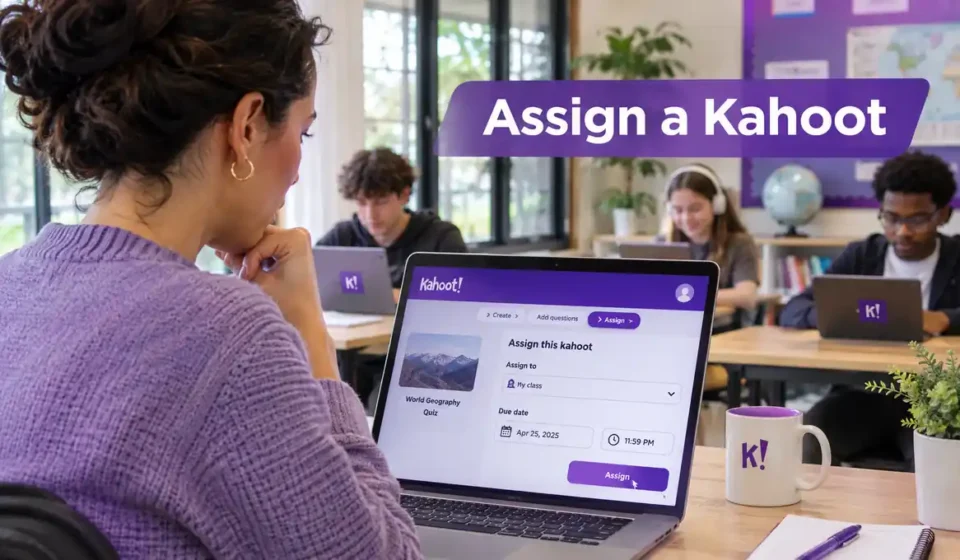
On the quiz details page, click Assign, not Host live. In the setup window, find the end date and select Edit to choose a date and time. Save it with Set.
Kahoot currently allows an assignment deadline up to 28 days ahead. Some plans also allow No deadline. The assignment becomes available immediately when you create it; if you want students to begin later, hold off on sending its link.
Step 3: Adjust the Options
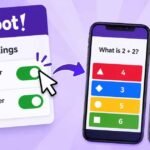
Expand More options and choose settings that fit your learning goal. Availability varies by plan and account type.
| Setting | Practical Reason to Use It |
|---|---|
| Question timer | Turn it off when careful reading matters more than speed |
| Randomize answer order | Make copying an answer position less useful |
| Friendly nickname generator | Reduce inappropriate or revealing display names |
| Player Identifier | Associate results with permitted identifiers on eligible plans |
If a quiz is intended as practice rather than a speed contest, removing time pressure can be a sensible choice. Randomizing answers can discourage simple copying, but an unsupervised assignment isn’t a secure exam.
Step 4: Create and Distribute It
Select Create assignment. Kahoot then provides a unique link, game PIN, and QR code. Copy the link into your learning platform, or give students the PIN if that’s how they normally join.
Include the deadline and a clear instruction, such as “Complete the 12-question fractions review by Thursday at 6 p.m. and write down two questions you found difficult.” That makes the task more useful than sending an unexplained link.
How to Assign a Kahoot in the Mobile App
You can create the same kind of learner-paced activity from the Kahoot app on a phone or tablet. The buttons are arranged differently, but you still select a quiz, choose its settings, and share an assignment link.
- Open the Kahoot app and sign in.
- Find the quiz in Library or Discover.
- Tap Assign near the bottom of its details page.
- Use the pencil to set the end date, and Options for settings such as the timer or answer order.
- Tap Create, then copy the link or PIN using the available sharing controls.
If you need to resend the joining information later, open that assignment from Reports in your Library and use its sharing option. Kahoot’s mobile guide confirms that the app can also offer Google Classroom, Remind, or other installed sharing services.
How Students Join, Finish, and Resume an Assignment
Students don’t need to watch a presentation. Each sees the questions and answers on a supported browser or the Kahoot mobile app.
Joining: Students open the shared link or scan the QR code. Alternatively, they can visit kahoot.it, enter the assignment PIN, and choose the requested nickname or identifier. The standard join a Kahoot process also explains PIN-based entry.
Finishing: Students answer questions before the assignment closes. An internet connection is needed to access the assignment and sync results. If you assigned work through a school platform, make sure students submit any additional response your class requires.
Resuming: The method matters. A guest using a browser can usually continue if they return on the same device and browser, haven’t cleared its data, haven’t entered another assignment, and the deadline hasn’t passed.
The mobile app saves progress on that device and shows unfinished work in Active, even without login.
On eligible plans, students invited through supported email and Player Identifier workflows can find assigned work in Your learning and resume across devices. Don’t promise that every anonymous browser session will transfer to a new phone or computer.
How to Check Results and Manage the Deadline
After students begin, open Reports, select the Assigned kahoots filter, and choose the relevant session. Kahoot’s reporting tools can show participants, individual results, unanswered questions, and questions that the group found difficult.
The exact features depend on your subscription and workspace permissions. If a report seems missing, check that you’re signed in to the account that created the assignment and viewing the correct workspace.
For exporting results, see our download Kahoot reports guide.
Can You Tell Which Student Finished?
Not always from a nickname alone. Students can choose display names that don’t match the class roster. The plan-dependent Player Identifier feature associates responses with a report-only identifier, but schools must collect it appropriately.
Kahoot makes organizations responsible for handling identification data. Don’t ask children to put email addresses or full names into public nicknames just to simplify grading.
What Can You Change After Assigning?
While the session is active, you can extend its deadline or remove it if your plan supports that option. After an assignment expires, Kahoot says it cannot be restarted; create a new one instead.
An important distinction: editing the original Kahoot doesn’t change questions in an already created assignment. If you discover a wrong answer, correct the quiz, create a fresh assignment, and send students its new link or PIN.
What About Google Classroom?
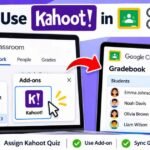
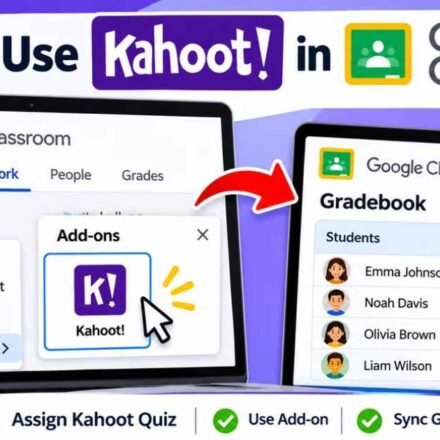
Pasting an assignment link into Google Classroom is the simplest sharing method. The official add-on is different: where enabled, teachers can create the assignment through Classwork, and Kahoot scores can pass back to the Classroom gradebook.
However, Kahoot says those results are not automatically tied to individual Classroom accounts for identity verification; Player Identifier may be necessary. Our Kahoot Google Classroom guide covers the integration without duplicating it here.
Common Assignment Problems and Fixes
The Assign button is missing. Check that you’re signed in, that the quiz is available in the current workspace, and that you’re viewing the quiz details page. In shared spaces, your permissions or plan may limit what you can assign.
The PIN doesn’t work. Confirm that students received the assignment PIN rather than an ordinary quiz link or an older session’s code. Check whether the deadline has passed, then resend the current assignment link if needed.
A student lost progress. Ask whether they switched browsers or devices, cleared browsing data, or started another assignment. The mobile app’s Active section may have their earlier session. For a fully expired assignment, a new session is necessary.
Scores don’t identify students. A nickname-only result is not proof of who answered. Use school-approved identification, and remember that removing a participant from a report doesn’t allow the same nickname to rejoin that session.
Frequently Asked Questions
Can I Assign the Same Kahoot Twice?
Yes. You can create more than one assignment from the same quiz, even while an earlier assignment remains active. Each session has its own access information and report.
Can I Hide the Leaderboard?
Kahoot’s web guide says an assignment leaderboard cannot be completely hidden. Some mobile settings can hide a participant’s position, which is not the same as removing the leaderboard for everyone.
Are Kahoot Assignments Free?
Basic assignment access is available on supported free accounts. Player limits, identification, advanced reports, and other features depend on the current plan; check the options your account actually displays.
Final takeaway: Treat the assignment as a learning cycle: check the quiz, give students a realistic deadline, and use the report to decide what needs reteaching. For more independent tutorials, see our Kahoot learning guides.
Publisher note: Kahoots.it.com is an independent informational website and is not affiliated with Kahoot!.




[…] (Participant Devices) Is Kahoot Down? How to Check Status and Fix Connection Errors How to Assign a Kahoot for Students to Complete at Their Own Pace How to Import Questions […]
[…] (Participant Devices) Is Kahoot Down? How to Check Status and Fix Connection Errors How to Assign a Kahoot for Students to Complete at Their Own Pace How to Import Questions […]