












You have finished creating a Kahoot quiz, but now you need to send it to someone else. Maybe your students need it for homework, a friend wants to try your questions, or another teacher wants to use the activity in class.
The process is straightforward once you understand what you are sharing. A regular quiz link, a live game PIN, and an assignment link serve different purposes.
This guide explains how to share a Kahoot using the current web platform, mobile app, and classroom options. It also covers privacy settings, editing access, and common problems that prevent sharing.
Quick Answer
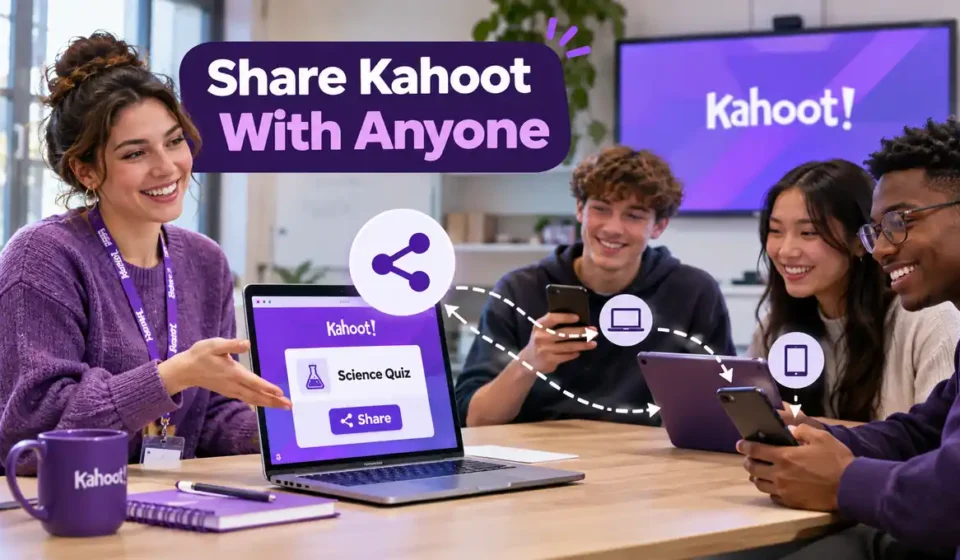
To share a Kahoot you made, sign in, open the quiz from your Library, click the three-dot menu on its details page, and choose Share kahoot. Copy the link and send it by email, chat, or your classroom platform. Public quizzes can be viewed through that link; unlisted sharing depends on your plan, while private quizzes cannot use ordinary share links. For students playing independently, create an assignment and send its link or PIN. If a colleague needs to edit questions, share an editable copy or use a team workspace.
How to Share a Kahoot Link Step by Step
The easiest way to share a Kahoot you created is to copy its link from the quiz details page. This gives another person access according to the visibility settings you selected.
You can use this method when sharing a quiz with friends, colleagues, or anyone who wants to view its details or open the available learning activities.
Step 1: Sign In to Your Kahoot Account
Visit Kahoot’s official website and sign in using your account. Once logged in, open your Library to find the quiz you created or saved.
If you have not made a quiz yet, our guide to create your Kahoot explains the starting process.
Step 2: Open the Kahoot You Want to Share
Find the quiz in your Library and open its details page. Make sure you have selected the correct quiz, especially if you have several activities with similar titles.
Step 3: Select the Share Option
On the quiz details page:
- Click the three vertical dots below the quiz title.
- Select Share kahoot.
- Find the Copy button in the sharing window.
- Click Copy to save the link to your clipboard.
These are the steps described in Kahoot’s official sharing guide, updated October 28, 2026.
Step 4: Send the Kahoot Link
Paste the copied link into the place where you want to share it. For example, you can send it through:
- WhatsApp or another messaging app
- Microsoft Teams
- Google Classroom
- A group chat
Before sending the link to a large group, check the quiz’s visibility settings. A link that works for you while signed in may not be accessible to everyone else.
What Happens When Someone Opens the Link?
A public Kahoot link opens the quiz details page. People can view that page without signing in.
However, sharing a quiz link is different from inviting someone to a particular live game. If your goal is to get people into a session, you need the appropriate game PIN or assignment link.
Kahoot also supports unlisted quizzes. These are accessible through a direct link without appearing in public discovery results, but availability depends on the account plan.
How to Share a Kahoot With Students
Teachers commonly share Kahoot activities in two ways: by starting a live classroom game or by creating an assignment students can complete independently.
The correct method depends on whether everyone will participate together or work at different times.
Option 1: Share a Kahoot as an Assignment
For homework, revision, or independent practice, an assignment is usually the more suitable option.
To create one:
- Sign in to Kahoot.
- Open the quiz from your Library.
- Select Assign instead of Host live.
- Choose the available assignment settings.
- Set an end date if required.
- Click Create assignment.
- Copy the assignment link or share its game PIN.
According to Kahoot’s assignment instructions, students can complete an assignment at their own pace. They generally do not need a Kahoot account to join.
If you need more detail about homework settings, our guide on how to assign a Kahoot covers that separate process.
Option 2: Share a Live Kahoot Game
When everyone is participating at the same time, start a live session. After opening your quiz, choose the live hosting option. Kahoot generates joining information that you can display or send to your participants.
Students can enter the game PIN at kahoot.it or use the available joining link or QR code.
This method works well for classroom competitions, review sessions, and group activities.
Which Sharing Method Should You Choose?
| Sharing Method | Best For | What You Send |
|---|---|---|
| Quiz details link | Showing someone a quiz | Regular Kahoot link |
| Live game | Playing together | Live game PIN, link, or QR code |
| Assignment | Homework and independent practice | Assignment link, PIN, or QR code |
| Direct account sharing | Sending a quiz to another Kahoot user | Share invitation inside Kahoot |
The important distinction is that a quiz link identifies the content, while a live or assignment link connects people to a particular activity.
For example, if your students need to complete a quiz before Friday, creating an assignment gives them a more direct route than sending only the quiz details page.
How to Share a Kahoot With Friends or Another Teacher
If someone simply wants to see or use your quiz, copying its link may be enough. When another teacher already uses Kahoot, you can also share the activity directly through the platform.
Share With Another Kahoot User
Kahoot provides an account-based sharing option. While editing the quiz:
- Open the quiz’s options menu.
- Select Share kahoot.
- Enter the recipient’s email address or an available group name.
- Choose the correct recipient from the suggestions.
- Click Share.
The recipient can then find the activity under Shared with you. There is an important limitation: the recipient’s email address must be associated with a Kahoot account. Otherwise, Kahoot says the direct sharing message will not be delivered.
For members of the same team workspace, Kahoot also supports sharing by username.
Share With Someone Outside Your School
Suppose a friend wants to try your history quiz, but they do not belong to your school or organization. You can send a regular public or eligible unlisted link through email or messaging.
You do not need to add them to a school workspace merely to give them access to a publicly shareable quiz. If they want to participate in a specific game rather than browse the quiz, send the live game or assignment information instead.
Check Access Before Sending
When sharing with someone outside your organization, confirm that the quiz is not restricted to your team workspace.
Kahoot’s Organization visibility setting limits access to people within the relevant shared workspace. Someone outside that workspace may be unable to open the content even if they receive its URL.
How to Share a Kahoot So Someone Else Can Edit It
Sharing a Kahoot for viewing is not the same as allowing someone to change its questions. This difference matters when teachers are preparing lessons together or students are collaborating on a project.
Method 1: Let Someone Duplicate the Kahoot
If the recipient needs an independent version, duplicating the quiz may be the simplest solution. For content that permits duplication, the other person can create a copy in their own Library and edit that copy. The original quiz remains separate.
Kahoot’s duplication guide explains that duplication options and destinations depend on where the content is located. Some content settings may limit the action.
This method is useful when you want a colleague to adapt your questions without changing your original version.
Method 2: Use a Shared Team Workspace
If several teachers need to work with shared content, a team workspace provides another option. Kahoot explains that team members can access and edit shared content within a collaborative workspace. The available permissions depend on the workspace plan and each person’s role.
Team workspaces generally require a subscription with multiple licenses. A practical approach is to keep the original quiz in your private workspace and move a duplicate into the shared workspace.
That way, your personal version remains separate from the copy your team uses.
Can You Give Editing Permission Through a Normal Link?
Do not assume that sending a standard quiz link grants editing permission. A recipient may be able to view or use the quiz without being able to change its content.
If editing is the goal, establish whether the person should work on a duplicate or collaborate through an authorized workspace.
How to Share a Kahoot on Phone or Google Classroom
You do not have to use a desktop computer every time you want to share an activity. Kahoot offers mobile sharing options, and teachers can distribute links through familiar classroom tools.
Share an Assignment Using the Kahoot Mobile App
To share an assignment from your phone:
- Open the Kahoot app and sign in.
- Select the quiz you want to use.
- Tap Assign.
- Adjust the available assignment settings.
- Tap Create.
- Copy the assignment link or PIN.
You can also use your device’s sharing menu to send the activity through compatible apps.
These steps follow Kahoot’s mobile assignment instructions, updated September 17, 2026. The exact placement of buttons may differ between the mobile app and desktop website.
Share a Kahoot in Google Classroom
For a straightforward classroom workflow:
- Create a Kahoot assignment.
- Copy its link.
- Open your Google Classroom course.
- Create an assignment or class announcement.
- Paste the Kahoot link.
- Add instructions for students.
For example, you might tell students when the activity is due and whether they should use their real names or assigned nicknames.
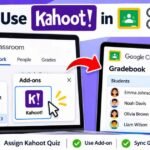
Kahoot also offers a Google Classroom add-on, but its availability depends on the school’s Google environment and administrative setup. Our Google Classroom sharing guide covers that workflow in more detail.
What About Zoom or Microsoft Teams?
For a remote lesson, you can share a quiz or assignment link in the meeting chat. For a live Kahoot, display the joining information and make sure participants can see the questions or use the available on-device gameplay options.
The same basic rule applies across these platforms: send the type of link that matches what you want participants to do.
Why Can’t I Share My Kahoot?
Sometimes the Share option is missing, disabled, or produces a link that another person cannot open. Before recreating the quiz, check its visibility, save status, account restrictions, and workspace location.
Problem 1: Your Kahoot Is Private
A private Kahoot cannot be shared through the ordinary public link-sharing option. You may need to change its visibility, provided your account and workspace allow it.
| Visibility Setting | Who Can Access It? | Sharing Consideration |
|---|---|---|
| Public | People who can access the public quiz | Suitable for general link sharing |
| Unlisted | People with the direct link | Availability depends on the plan |
| Private | Restricted to the owner’s permitted access | Standard Share option is disabled |
| Organization | Members of the relevant workspace | External users may be blocked |
Kahoot’s current visibility documentation distinguishes these settings and notes that some are limited to particular plans or workspace types.
For the exact steps, see our guide to make a Kahoot public.
Problem 2: Your Kahoot Is Still a Draft
A draft may appear in your Library even though it is not ready to be shared. Common reasons include:
- A missing quiz title
- A question without a selected correct answer
- An unsupported premium question type or theme
Open the quiz from your Drafts section, fix the identified issues, and save it as a complete version.
According to Kahoot’s saving guide, drafts cannot be played, assigned, or shared until the problems preventing completion are resolved.
Problem 3: Student Account Restrictions
Some student accounts have age-based sharing restrictions. As of Kahoot’s October 2026 documentation, these restrictions generally apply to students under 13 in the United States and under 16 in many other countries, with a separate rule for South Korea.
Affected users cannot make their own quizzes public or share them directly. However, teachers can still provide these students with an assignment link or game PIN.
If a young student needs to submit quiz questions to a teacher, Kahoot recommends using its question-import spreadsheet template.
Problem 4: The Recipient Cannot Open the Link
If a friend or teacher reports that your link does not work, check the following:
- Is the quiz public, unlisted, private, or restricted to an organization?
- Is the recipient signed in when their access requires an account?
- Did you share the quiz details link instead of the assignment link?
- Is the assignment still available?
- Did you copy the correct URL?
A quick check of these details usually helps identify which type of access is missing.
Also remember that editing the original quiz after creating an assignment does not update that existing assignment. Kahoot instructs hosts to create a new assignment when they need students to receive the revised questions.
Frequently Asked Questions
Can I Share the Same Kahoot With Several Classes?
Yes. You can create separate assignments from the same Kahoot for different classes. This is useful when each class needs its own deadline or set of results. Kahoot allows multiple assignments from the same quiz.
Can I Stop People From Opening a Kahoot Link I Already Shared?
For a previously shared public or unlisted quiz link, changing the quiz visibility to Private can revoke access through that link.
However, Kahoot does not provide a normal Unshare button for removing an activity from its direct-sharing records. The two situations are different.
Can I Share a Kahoot With Someone Who Doesn’t Have an Account?
Yes, depending on what you are sharing. Someone can view a public quiz details page without signing in. Participants can also join an assignment without a Kahoot account in the standard assignment workflow.
Direct account-to-account sharing is different because Kahoot requires the recipient’s email to be associated with an account.
Should I Send a Quiz Link or a Game PIN?
Send a quiz link when someone needs to see or access the quiz itself. Send a live game PIN when they need to join a session happening now. For independent homework or practice tied to a specific assignment, send the assignment link or PIN.
Choosing the right one avoids confusion for students and other participants.
Final Thoughts
Learning how to share a Kahoot becomes easier when you decide what the recipient needs first.
Use a regular link to share quiz content, a live game PIN for group play, and an assignment link for independent participation. If someone needs to edit the quiz, check duplication and workspace options instead of assuming that ordinary sharing includes editing rights.
For more help with creating, joining, and using quizzes, explore our Kahoot learning guides.
Disclaimer: Kahoots.it.com is an independent informational website. It is not affiliated with or endorsed by Kahoot!





[…] Kahoot? Player Limits Explained How to Cancel a Kahoot Subscription and Stop Auto-Renewal How to Share a Kahoot With Students, Friends or Teachers Is Kahoot Free? Free Features, […]