










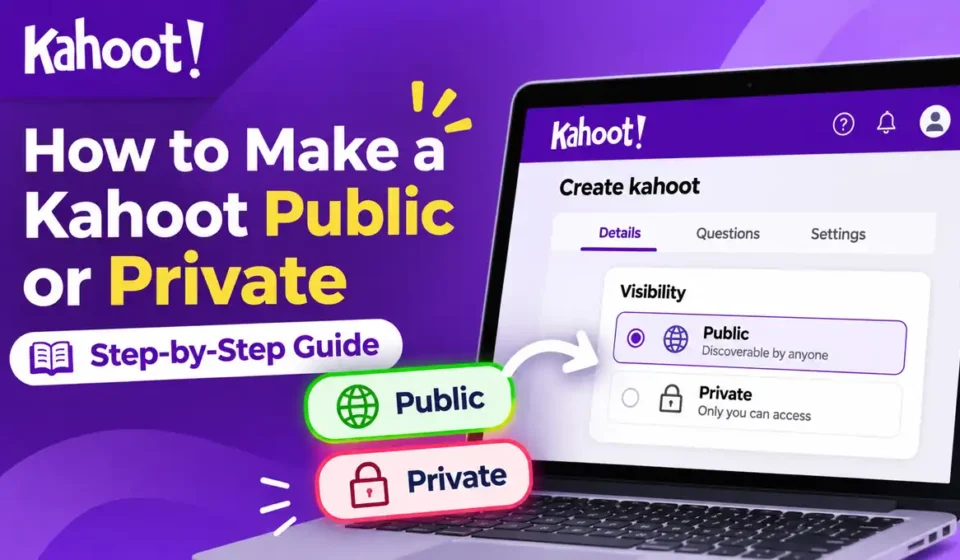

You created a Kahoot quiz and want other people to see it, but the game is still set to Private. Maybe you’re a teacher sharing a classroom activity, or you’ve made a trivia quiz that you want friends to find in Kahoot Discover.
Knowing how to make a Kahoot public helps you control who can discover and access your questions. You can change this setting from your Library or the Kahoot Creator, although the available options depend on your account and where the quiz is saved.
Quick Answer
To make a Kahoot public, sign in, open Library, find your quiz, and use the three-dot menu beside its title to choose Public. You can also open the quiz in the creator, select Settings, change Visibility to Public, click Done, and save. Public visibility is available only where your account and workspace allow it. Young student accounts, free business accounts, or unfinished quizzes may face restrictions. If you want to hide the game later, switch its visibility back to Private and save your changes.
How to Make a Kahoot Public From Your Library
If you’ve already created and saved a quiz, changing its visibility through your Library is usually the fastest method. You don’t need to recreate the questions or start another game.
Step 1: Open Your Kahoot Library
- Visit Kahoot’s official website and sign in.
- Open Library.
- Locate the quiz you want to make public.
- Confirm that you’ve selected the correct game.
If your account belongs to multiple workspaces, check where the quiz is stored. Kahoot provides different visibility settings for private and shared workspaces.
Step 2: Change Private to Public
Once you’ve found the quiz:
- Click the three vertical dots beside its title.
- Open the visibility options.
- Select Public from the available choices.
- Confirm the change if prompted.
According to Kahoot’s official visibility guide, users can update an existing game’s visibility directly from the Library.
If Public is missing or disabled, the problem may involve your account type or workspace permissions. You’ll find the relevant checks later in this guide.
Step 3: Check Whether Your Kahoot Is Public
Return to the quiz’s options and check its saved visibility setting. If it shows Public, the game is configured for public access under the account’s available permissions.
You can also try finding the quiz through Kahoot Discover. However, the saved visibility setting is the more dependable immediate check because public discovery results may not display every quiz for every search.
Once the setting is correct, you can share your Kahoot by sending its link to friends, students, or colleagues.
How to Make a Kahoot Public While Creating or Editing It
You can set a Kahoot’s visibility before finishing the quiz or change it later while editing. This is useful when you’re preparing a new activity and want to review its questions and settings before making it available to others.
Step 1: Open the Kahoot Creator
Sign in to your account and select Create → Kahoot if you’re starting a new quiz.
For an existing game, open your Library and select the pencil or Edit option to enter the creator.
If you’re starting from scratch, our guide to create a Kahoot explains the full quiz-building process.
Step 2: Find the Visibility Setting
Inside the Kahoot Creator:
- Click Settings at the top of the editor.
- Find the Visibility section.
- Select Public, if available.
- Click Done.
- Click Save in the upper-right corner.
These steps match Kahoot’s current creator instructions.
Remember that closing the Settings window isn’t the same as completing the quiz. Save the game so the updated visibility is applied.
What If the Quiz Is Still a Draft?
A draft is a quiz that hasn’t been saved as a complete, playable game. Kahoot may keep a quiz in Drafts if it lacks required information or uses features unavailable under the current subscription.
For example, a quiz question might be missing its correct answer, or you may have selected a premium theme.
Open the creator, resolve the warnings, and save the game again. If you need help completing the quiz itself, read how to publish your Kahoot.
Changing visibility alone won’t fix an incomplete draft.
Public vs Private vs Unlisted Kahoots: What’s the Difference?
Before making a quiz public, consider who should have access. A general knowledge quiz can be suitable for broad sharing, while a classroom activity containing sensitive information should remain restricted.
Kahoot provides several visibility options. Their availability depends on the account type, subscription, and workspace location.
| Visibility | Who Can Access It? | Public Discover Search | Best Use |
|---|---|---|---|
| Public | People who can access public Kahoot content | Yes | Quizzes intended for broad sharing |
| Private | Restricted access; normal sharing disabled | No | Personal or unfinished resources |
| Unlisted | People with the direct link, subject to plan and workspace rules | No | Link-based sharing without public discovery |
| Organization | Authorized members of the relevant shared workspace | No | School or workplace collaboration |
When Should You Make a Kahoot Public?
Choose Public when you want people outside your immediate classroom or organization to find your game.
For example, a teacher might create a geography quiz suitable for several grade levels. Making it public allows other Kahoot users to discover the quiz and access its details.
Before changing the setting, review your questions and description. Remove private student information, confidential materials, or anything you don’t have permission to distribute.
When Is Private the Better Option?
Private is useful while preparing a quiz or when you want to restrict access to your own content.
Kahoot’s normal Share option is disabled for Private games. If you later want to distribute the quiz through an ordinary link, you’ll need an eligible visibility setting that supports sharing.
Private also gives you a way to restrict access to a previously public quiz. Changing a Public or Unlisted game to Private stops its previous ordinary share link from providing access to other people.
Is Unlisted Different From Private?
Yes. An Unlisted Kahoot doesn’t appear in public Discover search results, but people with an eligible direct link can access it.
The Unlisted option depends on your subscription. It also shouldn’t be treated as completely confidential: recipients can pass along a link, and shared workspace members may have access through permitted folders.
Choose Unlisted when link-based access meets your needs without public discovery, rather than using it to store sensitive information.
What Is Organization Visibility?
Organization visibility is designed for eligible shared workspaces, such as school teams or companies.
Authorized team members can access content without making it publicly discoverable. The option requires an appropriate team or school plan.
Public and Private settings are associated with a private workspace, while Organization visibility applies to shared workspace content. Check the game’s location if the option you need isn’t available.
How to Make a Kahoot Public on iPhone, iPad, Android, or Chromebook
You can create and edit Kahoot quizzes using the mobile app, although its controls differ from the desktop website.
On a phone or tablet, the first step is finding the quiz in your Library and opening its editor.
Change Visibility in the Kahoot Mobile App
Kahoot’s official mobile editing guide documents the following navigation:
- Open the Kahoot app and sign in.
- Tap Library.
- Open Kahoots → Your kahoots.
- Select the quiz you want to change.
- Tap the pencil icon to edit it.
- Find the quiz details and the Visible to option.
- If your account permits it, select the option that makes the quiz visible to everyone.
- Tap Save to apply your edits.
Kahoot’s mobile documentation describes visibility to everyone or only yourself when a quiz is saved under Your kahoots.
The wording or location of controls may vary between app versions. If the option isn’t available, don’t assume the phone itself is the problem.
What If the Public Option Is Missing on iPhone or iPad?
First, check your account type and the workspace where the quiz is stored. Account-level restrictions remain in effect regardless of the device you’re using.
If the app’s editing screen doesn’t provide a clear visibility control, use Kahoot’s web platform and follow the Library or Creator steps above.
This is more reliable than following older screenshots that may show outdated menu labels.
How to Make a Kahoot Public on Chromebook
A Chromebook can use Kahoot’s web platform through its browser.
Open your Library, locate the quiz, select its three-dot menu, and choose Public if the option is supported.
Alternatively, edit the game and use Settings → Visibility → Done → Save. No special Chromebook-specific visibility feature is required.
Why Can’t I Make My Kahoot Public?
If Public is grayed out, missing, or refuses to save, the cause may be connected to your account, subscription, workspace, or the quiz itself.
The table below can help you identify the likely issue before changing anything.
| Problem | Possible Cause | Recommended Check |
|---|---|---|
| Public option missing | Quiz is in a shared workspace | Check its workspace location |
| Student cannot select Public | Young student account restriction | Review age-based eligibility |
| Free business account stays Private | Account-type limitation | Check available plans |
| Quiz remains a draft | Missing required information | Complete questions and save |
| Save requests an upgrade | Premium question type or theme | Remove unsupported paid features |
| Previously shared link fails | Visibility changed or access restricted | Review saved visibility and permissions |
Student Account Restrictions
A common question is how to make a Kahoot public as a student.
According to Kahoot’s age-restriction policy, students under 13 in the United States receive young student accounts with restricted sharing features.
These users cannot make their own Kahoots public or share them directly. In most countries outside the United States, the young-student threshold is under 16, while South Korea has a separate account-creation rule.
Older students with eligible accounts may have different permissions. Being a student doesn’t automatically mean the Public option is unavailable.
If a young student needs to submit quiz questions to a teacher, Kahoot recommends using its question-import spreadsheet template. The teacher can import those questions into an appropriate account.
Free Business Account Limitations
Not every free Kahoot account provides the same visibility features.
Kahoot’s official documentation states that free business accounts are limited to Private visibility. Users with those accounts may need an eligible paid plan to enable Public.
This restriction shouldn’t be confused with the features available to teachers, personal users, or eligible student accounts.
For more information about subscriptions and included features, see our guide to Kahoot free features.
Your Quiz Is in a Shared Workspace
A Kahoot saved in a shared workspace may have different visibility choices from one stored in a private workspace.
Kahoot documents Public and Private as options associated with a private workspace. Organization visibility is intended for an eligible shared workspace.
If Public is unavailable, check where the quiz is stored before assuming a subscription upgrade is necessary.
When the game belongs to a school or team, review its ownership and collaboration requirements before moving it. Creating a separate copy in an appropriate workspace may be safer than changing the team’s original resource.
Premium Questions or Themes Are Preventing a Save
Some Kahoot features require a paid subscription. Kahoot marks premium content with a turquoise star.
If you’ve selected a question type or theme that isn’t included in your current plan, the game may remain a draft or fail to save as a complete quiz.
Try these steps:
- Open the game in the Kahoot Creator.
- Review any warnings.
- Check questions and themes marked with a premium star.
- Replace unsupported elements with available alternatives.
- Add missing titles or correct answers.
- Click Save again.
Kahoot’s official saving guide explains that incomplete questions and unavailable premium features can prevent a game from being saved as playable.
Fixing those issues may be enough when the account already supports Public visibility. Removing premium elements won’t override an age-based or account-type restriction.
How to Share or Find Your Public Kahoot
After making a Kahoot public, you can share it directly or allow other people to find it through Discover.
These are different actions. Visibility determines who may access the quiz, while sharing provides a direct way to send it to someone.
Copy a Public Kahoot Link
To share the quiz:
- Open its details page.
- Click the three vertical dots below the title.
- Select Share kahoot.
- Click Copy.
- Paste the link into an email, message, or classroom platform.
These steps follow Kahoot’s official sharing instructions.
A normal quiz details link is not the same as a joining link for a live game. If students need to complete an activity independently, you can assign a Kahoot instead.
Find Your Quiz Through Kahoot Discover
Public Kahoots are eligible to appear in Discover, where users can search for activities on different topics.
For example, a science quiz with an accurate title and useful description may be easier for interested users to identify.
Our guide to find public Kahoots covers the search process.
Making a quiz Public doesn’t guarantee immediate visibility for every search query or indexing by external search engines such as Google.
Frequently Asked Questions
Can I Make a Kahoot Public for Free?
Yes, Public visibility is available to some eligible free account types, but not every free account offers the same settings.
Kahoot specifically restricts free business accounts to Private visibility. Young student accounts also have age-based restrictions. Check your account’s available options before assuming an upgrade is necessary.
Can I Change a Public Kahoot Back to Private?
Yes. If Private is available in your workspace, return to the quiz’s visibility settings, select Private, and save the change.
Kahoot explains that changing a previously Public or Unlisted game to Private prevents other people from opening it through the previous ordinary share link.
This doesn’t necessarily remove copies another person has already created.
Does Making a Kahoot Public Allow Others to Edit It?
No. Public visibility doesn’t automatically grant editing access to the original quiz.
Kahoot provides a separate Allow duplication setting, which controls whether permitted users can make their own copies. Editing a shared original depends on appropriate workspace permissions.
Can I Make Every New Kahoot Unlisted Automatically?
No. Kahoot’s visibility documentation says there is no setting that automatically applies Unlisted visibility to every newly created game.
If your subscription includes Unlisted access, you need to select it for individual quizzes.
Does Public Visibility Guarantee That My Quiz Will Appear on Google?
No. Making a Kahoot public controls its visibility within Kahoot and makes it eligible for discovery.
It doesn’t guarantee external search engine indexing or a particular Google ranking. If you need someone to access a specific quiz, send the direct link instead of relying on search results.
Disclaimer: Kahoots.it.com is an independent informational website. It is not affiliated with or endorsed by Kahoot!