






How to Use Kahoot in Google Classroom: Teachers managing remote or hybrid learning environments often struggle with making students juggle multiple browser tabs, web links, and confusing login screens. Integrating your interactive quizzes directly into your primary learning management system solves this problem.
When you connect Kahoot with Google Classroom, students can complete assignments without ever leaving their familiar digital ecosystem. Furthermore, integrating the two platforms allows teachers to avoid manual grading, as scores can import automatically.
However, many educators run into issues figuring out how to actually link the two platforms or get stuck trying to pass grades back to their main gradebook. This guide explains exactly how to set up the official Google Classroom integration, how to track individual student scores securely, and how to use a completely free workaround if your school district does not pay for premium features.
Quick Answer: How to Link Kahoot to Google Classroom:
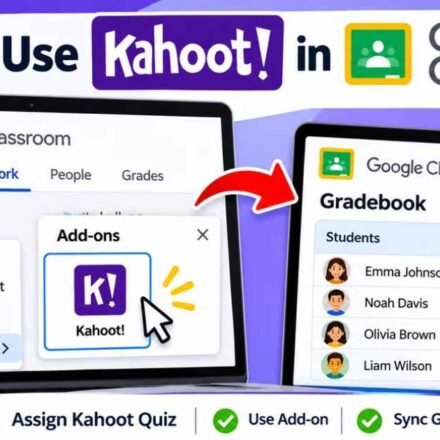
You can use Kahoot in Google Classroom through two primary methods. The most efficient method requires installing the official Kahoot Add-on from the Google Workspace Marketplace. Once installed, go to your Google Classroom “Classwork” tab, create a new assignment, click the Kahoot Add-on icon, and select your game. When students finish, their scores automatically sync to your gradebook. If you do not have the premium subscription required for the Add-on, you can simply generate a standard assignment link and paste it directly into your Google Classroom stream.
Two Ways to Link Kahoot and Google Classroom
Before you attempt to connect the platforms or assign a quiz to your roster, you need to know exactly what subscription plan your school provides. Kahoot offers two distinct ways to share games with your Google Classroom students, and they operate very differently.
The first method uses the official Google Workspace Add-on. This method requires a premium Kahoot! EDU subscription and often requires your school district’s IT administrator to approve the installation. It allows for seamless grade syncing. The second method is completely free and requires absolutely no admin approval, but it requires you to manually copy and paste web links.
Before you can assign anything to your students using either method, you must log in and Kahoot create your quiz or select a pre-made game from the Discover tab on your teacher dashboard.
Method 1: How to Use the Official Kahoot Add-on (Best for Grading)
If you have the appropriate EDU license, using the official Google Workspace integration is the most efficient way to work. It keeps students inside the Google Classroom interface and automates your entire grading workflow, saving you hours of manual data entry at the end of the week.
Step 1: Install the Add-on via Workspace Marketplace
First, open Google Classroom and navigate to the Google Workspace Marketplace. Search for the official Kahoot Add-on and click the install button.
If you notice that the install button is greyed out, it means your school district has blocked teachers from installing third-party applications. This is a common security protocol in public school systems. You will need to contact your IT administrator and ask them to explicitly whitelist the application for your organizational unit. Once the admin approves it, the button will become clickable.
Step 2: Create the Assignment in the Classwork Tab
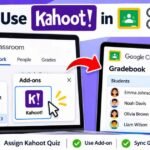
Once the Add-on is active on your account, go directly to the Classwork tab in your Google Classroom. It is critical that you use this specific tab, rather than the main Stream. Click the Create button and select Assignment from the dropdown menu.
At the very bottom of the assignment creation window, click the Add-ons button and select the Kahoot icon. A small pop-up window will appear asking you to log into your Kahoot account to verify your credentials. Once you log in, browse your personal library, select the quiz you want to assign, set your deadline, and click Add.
The game is now attached directly to the Google Classroom assignment. When you click assign, your students will receive a notification that they have a new quiz waiting for them.
Method 2: The Free Way (Sharing a Direct Link)
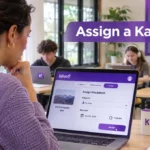
If your school district does not have the premium add-on installed, or if you are using a free basic account, you cannot use the Workspace integration. Instead, you must learn how to assign a Kahoot manually and generate a standard web link to paste into your class stream.
Go directly to the Kahoot website and open your library. Find the game you want your students to play, click the Assign button, and configure your timer and deadline settings. Click Create.
The system will generate a specific web URL and a game PIN. Simply copy this URL to your clipboard, go to your Google Classroom, and paste it as a link in a standard announcement or assignment. When students click the link, it will open a new browser tab where they can type in their name and play the game.
Because this method does not use the official Add-on, the grades will not automatically sync to your Google gradebook. You will have to view the results on Kahoot and type them into Google Classroom yourself.
How to Sync Grades and Track Student Scores
The biggest benefit of using the premium Google Classroom Add-on is the automatic grade passback feature. When students finish the quiz, the system calculates their score, converts it, and imports it directly into your Google Classroom gradebook without any manual intervention.
Enabling the Player Identifier Feature
To ensure grades sync accurately to the correct student, teachers must use the “Player Identifier” feature. When configuring your assignment inside the Add-on menu, ensure you check the box to require an identifier before finalizing the assignment.
This setting forces students to verify their identity using their official school Google email address before the game starts. Without this step, students might enter a nickname, making it impossible for the software’s API to match their score to the correct name in your Google Classroom roster.
The Player Identifier creates a secure, verifiable link between the student playing the game and the student listed in your gradebook, preventing cheating and ensuring accurate data transfers.
Troubleshooting Common Integration Problems
Even with the official integration set up perfectly, teachers occasionally run into technical glitches during the school day. Here is how to solve the two most common problems reported by educators.
Why are my grades not syncing to the gradebook?
If you used the free link-sharing method described in Method 2, grades will never sync automatically. You must use the official Add-on for grade passback to function.
If you are using the Add-on and grades are still missing from your roster, check exactly where you posted the game. Assignments posted in the main Google Classroom “Stream” tab will not sync grades. You must create the assignment inside the “Classwork” tab for the grade passback API to communicate between the two platforms.
If the grade passback completely fails due to a temporary network error, do not panic. The data is not lost. You can always view the raw completion data by navigating directly to the Reports tab on your main Kahoot dashboard to retrieve the missing scores.
How to fix the Kahoot login loop error
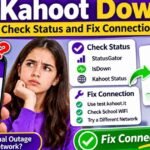
Many teachers report getting stuck in an endless login loop when trying to attach a game via the Add-on pop-up window. They click the Add-on, enter their credentials, the window refreshes, and it immediately asks them to log in again, blocking them from accessing their library.
This frustrating loop is almost always caused by your web browser blocking third-party cookies. Google Classroom uses technology called iFrames to load the Kahoot login screen inside the Google window. If your browser blocks tracking cookies, it blocks the login verification.
To fix this issue, go to your Chrome browser settings. Navigate to the “Privacy and security” section, select “Cookies and other site data,” and ensure that you are allowing third-party cookies specifically for Google Classroom. Once enabled, refresh the page, and the login window should process your credentials normally.
Frequently Asked Questions
Do students need a Kahoot account to play in Google Classroom? No. Students only need their standard Google Classroom login credentials. When they click the assigned game inside Google Classroom, they can begin playing immediately without registering for a separate Kahoot account or downloading a separate application.
Can you host a live Kahoot game on Google Classroom? Google Classroom is designed primarily for asynchronous, self-paced assignments. While you can certainly post a live game PIN in your classroom stream for students to join during a Zoom call or in-person lecture, the official Add-on and grade syncing features are built specifically for student-paced assignments rather than live hosting.
Will the Add-on work if students play on their smartphones? Yes. If students have the Google Classroom application downloaded on their iOS or Android devices, they can click the assigned Kahoot directly within the app. The game will launch within their mobile browser, and their grades will sync back to the teacher’s gradebook just as they would on a desktop computer or Chromebook.