



























How to Randomize Kahoot Questions: Teachers who use the same quizzes across multiple class periods quickly discover a common problem regarding academic integrity. Students in the morning session talk to students in the afternoon session. By the end of the school day, half the classroom knows the exact sequence of the correct answers before the game even begins.
Even if you only teach one group of students, repeating a review game before a final exam often leads to accidental memorization. Students stop reading the educational material on the screen and simply memorize the sequence of the colored blocks. They remember that the first answer is the red triangle and the second answer is the blue diamond, completely bypassing the actual learning objective.
If you want to ensure your quizzes accurately measure student knowledge, you need to change the order of the material. The platform includes built-in tools to shuffle your content automatically. This guide explains exactly where to find the randomization settings for live games, how to shuffle answer blocks to prevent wandering eyes, and how to navigate the platform’s limitations regarding solo practice and massive question banks.
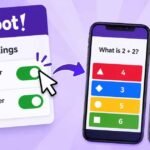
Quick Answer: How to Randomize Kahoot Questions To randomize the order of your questions during a live game, open your library and click “Start” on your chosen quiz. Before generating the game PIN, click the gear icon on the screen to open the host settings menu. Scroll down until you locate the “Hosting” section. Click the toggle switch next to “Randomize order of questions” to turn it on. You can also turn on “Randomize order of answers” directly below it. These settings shuffle the content automatically once you launch the lobby.
Why You Should Shuffle Your Kahoot Quizzes
Many educators treat digital trivia games strictly as a fun reward for good behavior on a Friday afternoon. When used purely for entertainment, the chronological order of the slides rarely matters. However, when you use the platform for actual test preparation or formative assessment, predictability ruins the experience.
Students naturally look for shortcuts when they feel competitive pressure. When a timer ticks down rapidly, the human brain attempts to identify visual patterns rather than reading long paragraphs of text. If a student plays a review game on Monday and plays the exact same game on Wednesday, they are no longer recalling historical facts or math equations. They are testing their short-term memory of a color sequence.
Shuffling the sequence breaks this visual pattern instantly. It forces the audience to read the specific question prompt, evaluate all the available options, and make an active educational decision. Changing the order keeps the material fresh. This simple toggle allows you to reuse the same quiz multiple times throughout the school year without the content becoming stale or easily cheated.
Step-by-Step: Randomizing Questions in Live Games
The platform makes it very simple to shuffle your content for a live audience. You do not need to manually drag and drop your individual slides inside the creator studio to build different versions of a test. The software handles the randomization instantly right before the game begins.
The most important thing to remember is that you cannot access this feature from the editing studio. You must initiate the live game launch sequence first.
Start by logging into your account and navigating to your personal library. Find the specific quiz you want to use and click the “Start” button. A new screen will open asking you to choose your game mode, such as Classic or Team Mode. Do not select a mode yet.
Instead, the Kahoot host must look for the small gear icon located on the screen. Clicking this gear icon opens the host settings panel, which controls the specific rules for that temporary lobby.
Scroll down the panel until you locate the section labeled “Hosting.” Here, you will find a simple toggle switch labeled “Randomize order of questions.” Click the toggle so it turns green. You can now close the settings panel, select your game mode, and generate the PIN for your students. The software will instantly shuffle the slide sequence before the first prompt appears on the smartboard.
Don’t Forget to Randomize the Answers
Shuffling the overall slide sequence is only half the battle when it comes to preventing classroom cheating. If a specific question appears on the board, students sitting directly next to each other can still easily copy off their neighbor’s device.
If a student sees the person next to them tapping the green square, they will tap the green square on their own screen to secure the points. You can prevent this entirely by shuffling the multiple-choice options on individual devices.
Inside that exact same “Hosting” settings panel, directly below the question toggle, you will see a switch labeled “Randomize order of answers.” When you turn this feature on, the correct answer appears in a different physical location on every single phone in the room. The student on the left might have the correct answer assigned to the red triangle, while the student on the right has the exact same correct answer assigned to the yellow circle.
When your students play the game with this setting enabled, wandering eyes provide absolutely no advantage. They must read the text associated with the shape on their own screen to earn their points.
Can You Randomize Questions for Assigned Kahoots?
Teachers frequently use the platform’s asynchronous features to send quizzes home as weekend homework or self-paced study guides. A major point of confusion arises when educators try to shuffle these specific take-home challenges.
According to official platform documentation, it is currently impossible to randomize the order of questions for a student-paced assignment. The platform simply does not support question shuffling for asynchronous modes. Every student who clicks your homework link will experience the slides in the exact order you originally built them in the creator studio.
If you are setting up homework and looking at how to assign a Kahoot, be aware of this specific limitation. While you cannot shuffle the overall slide sequence, you can still deter cheating on homework by randomizing the answers.
When you click the “Assign” button to set your deadline, an options menu appears. Simply toggle the “Randomize answer order” switch before you generate the final web link. Students will answer the prompts in the same chronological order, but the color blocks will shuffle differently on their home computer screens.
Workarounds: Randomizing Questions in Solo Practice Mode
Many students log into the platform independently to study for upcoming exams. The software offers a native “Practice” and “Test yourself” mode designed specifically for individual review without a teacher present.
Unfortunately, the developers did not include a shuffle button for these native study tools. If you click the practice button, the system forces you to play the quiz in its original chronological order every single time you launch it.
If you want to Kahoot play by yourself with a completely shuffled deck of questions, you have to use a clever community workaround. You must trick the system into thinking you are running a live classroom game.
First, open a web browser on your computer, find your quiz, and click “Start” as if you were a teacher. Open the gear icon, turn on both randomization toggles, and generate a live game PIN.
Next, pull out your smartphone or open a second incognito browser window on your computer. Go to the main website, enter the game PIN you just generated, and type in your name. Return to your first browser window and click start. You can now play the game on your second screen with completely randomized questions and answers, acting as both the teacher and the only student in the room.
Can You Select Random Questions from a Question Bank?
As educators become more comfortable with the software, they often try to build massive review tests covering an entire semester of material. A highly requested feature in educational community forums is the ability to create a massive “Question Bank.”
Many teachers want to type 100 different questions into a single file. They then want the settings menu to randomly select 20 questions from that massive pool for each individual student, ensuring no two students take the exact same test.
It is important to clarify the difference between shuffling a quiz and pulling from a question pool. The standard randomization toggle simply changes the chronological order of your existing slides. It still forces the audience to play every single slide included in the file.
The standard version of the software does not natively support randomized question pools. You cannot build a massive 100-question file and ask the system to automatically spit out 20 random prompts. The only way to achieve this is manually. You would have to duplicate your main file several times in your library, open each copy, and manually delete 80 different questions from each file to create unique variations for different class periods.
Troubleshooting Common Shuffling Issues
If you use the randomization features frequently, you might encounter a few minor technical quirks regarding how the game displays information.
One common issue involves presentation slides. Many teachers insert informational slides containing text or images between trivia questions to explain a difficult concept. If you turn on the question randomizer, those informational slides will also shuffle. They might appear at the very end of the game or directly after an unrelated question, ruining the flow of your lesson. If your quiz relies heavily on instructional presentation slides, you should leave the question randomizer turned off.
Another frequent question involves the final reporting spreadsheet. Toggling the randomization settings in the host lobby does not permanently alter your original quiz file or mess up your data. When you view the final spreadsheet report after class, the software tracks which student answered which specific question correctly, regardless of the order the slides appeared on the smartboard.
Frequently Asked Questions
Can I keep the first question locked in place while shuffling the rest? Currently, the system takes an all-or-nothing approach to randomization. If you turn on the question randomizer, every single slide in the file will shuffle. You cannot lock the first slide to serve as an introduction or a warm-up while randomizing the remaining trivia questions.
Does randomizing questions affect the time limit for each slide? No. The individual time limits you set for each question in the creator studio remain attached to those specific questions. If you gave students 60 seconds for a difficult math problem and 10 seconds for a quick vocabulary word, those specific timers will follow the questions regardless of where they land in the shuffled order.
Can players tell that the answers are randomized on their screens? Players using their own devices will only see their specific arrangement of color blocks. Unless they actively look at the screen of the person sitting directly next to them and compare the text, they will not realize the multiple-choice options are arranged differently.




[…] Setup, Settings, and Scoring How to Change Your Kahoot Username (And Important Rules) How to Randomize Kahoot Questions (and Answers) Kahoot Game Modes Explained: From Classic […]