

















You’ve finished your Kahoot quiz, but it still says Draft. You can’t play it or share it, and the Publish button shown in older tutorials seems to be missing.
The current Kahoot editor uses Save to make a completed draft playable. Here’s how to fix blocking errors and control who can see the result.
Quick Answer: How to Publish a Kahoot
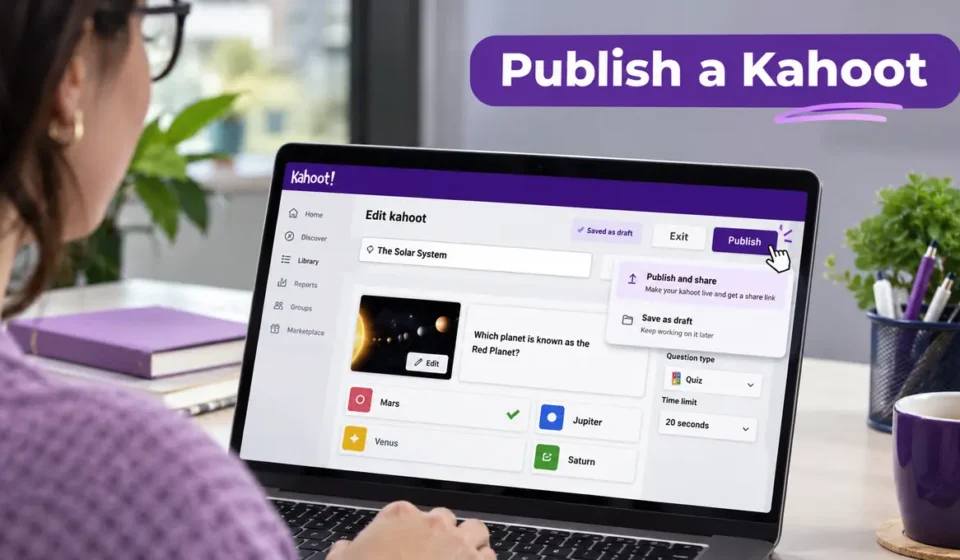
To publish a Kahoot from Drafts, sign in, open Library → Drafts, find your quiz, and select Edit. In the creator, check that it has a title and that every Test knowledge question has the required correct answer. Click Save in the upper-right corner. If Kahoot displays Fix, complete the flagged item; if it requests an upgrade, remove unsupported starred features or themes. Save again until the game becomes playable. Then choose its visibility separately, because saving a quiz doesn’t automatically make it public or shareable.
What Does Publishing a Kahoot Actually Mean?
Finishing a draft means saving a playable game you can host or assign, subject to account permissions. The game need not be publicly discoverable. Kahoot autosaves your editing progress, but that draft can still contain incomplete questions or unsupported features.
| Kahoot Status | What It Means | Next Action |
|---|---|---|
| Draft | No completed, playable version exists | Edit the quiz and resolve the saving warnings |
| Unsaved | A playable version exists, but newer edits haven’t been finalized | Return to the editor and save those edits |
| Saved game | Required checks passed for a completed game | Review visibility and test access |
Drafts appear under Library → Drafts; Unsaved games may appear in Recent or their existing folders. Check both before assuming a quiz is missing.
How to Publish a Kahoot Draft on a Computer
According to Kahoot’s official saving instructions, the web workflow is Library → Drafts → Edit → Save. Start with the account where you originally created the draft, not a classmate’s account or another workspace.
Step 1: Open the Correct Draft
- Sign in to the Kahoot account that created the game.
- Open Library, then select the Drafts tab.
- Find your quiz and open its three-dot menu.
- Choose Edit to return to the creator.
On smaller screens, Edit may appear as a pencil icon. Check the original workspace if your account has separate personal and team Libraries. For navigation help, see our Kahoot dashboard guide.
Step 2: Fix Incomplete Questions
Check the quiz’s title and every Test knowledge question. Each must have the required correct answer marked, not just answer choices filled in. Start with any question Kahoot has highlighted.
For example, an eight-question science quiz can remain a draft because question eight contains four options but no correct answer. Correct that one question instead of starting the quiz again.
If you still need to build the content, follow our separate create a Kahoot guide.
Step 3: Save the Completed Game
Click Save at the top right. If a warning appears, select Fix to jump to the incomplete item, make the correction, and try Save again. Kahoot may also show an upgrade message when the draft contains unsupported premium elements.
Autosaved typing isn’t confirmation that the game is complete. Open its Library details afterward and make sure the appropriate play or hosting controls are available instead of a Draft-only status.
Step 4: Test the Finished Quiz
Preview the wording, correct answers, and images as a player would see them. Before sending any link, check visibility: a correctly saved Private game still isn’t freely accessible to others.
How to Publish a Kahoot on a Phone or Tablet
You can also finish drafts in Kahoot’s mobile app without switching to a computer. Its checklist and buttons differ from the web version, so follow the mobile-specific steps.
- Open the Kahoot mobile app and sign in.
- Tap Library → Kahoots → Your kahoots.
- Select your quiz and tap the pencil icon.
- Open the checklist and complete its missing items.
- Tap Save, then reopen the game to confirm it’s playable.
The mobile checklist generally asks for a title, description, completed questions, and a signed-in account. You can check the current app navigation in Kahoot’s mobile editing guide.
Cancel discards edits made during the current session, while Save keeps your work. If the checklist is incomplete, however, the saved game may still remain an unplayable draft.
How to Make a Saved Kahoot Public or Shareable
Save makes a game playable; visibility determines who can access it. A successful save doesn’t guarantee that a shared link will work, particularly if the game remains Private or access is restricted.
| Visibility | Who Can Access It? | Appears in Discover? |
|---|---|---|
| Public | Anyone allowed to access public content | Yes |
| Private | Owner or permitted signed-in access; normal Share link is disabled | No |
| Unlisted | Anyone with the direct link, where the plan supports it | No |
| Organization | Members of an eligible shared workspace | No |
To change visibility, use the saved game’s three-dot menu in Library, or open Settings → Visibility → Done → Save in the creator. See Kahoot’s official visibility guide.
Private isn’t Unlisted. The usual Share button is disabled for Private games. Unlisted allows anyone with the link to open the game, where supported, without placing it in Discover.
See our make a Kahoot public guide for the complete visibility walkthrough.
Some options may be missing because of your plan, account type, or workspace. Public and Private generally apply to personal workspaces, while Organization belongs to eligible shared workspaces. Free business accounts and young student accounts can face additional restrictions.
Why Won’t My Kahoot Publish? Fix the Actual Error
Rather than repeatedly pressing Save, look at the warning or status shown in your creator. The same button can fail for several different reasons, each requiring a different fix.
| What You See | Likely Cause | What to Try |
|---|---|---|
| Fix warning | Missing title or required correct answer | Open the flagged item and complete it |
| Upgrade popup | Starred premium question type or theme | Replace unsupported features or use an eligible plan |
| No Edit button | Compact interface or wrong permissions | Look for the pencil icon; check account and workspace |
| Unsaved label | Changes to an already playable game | Save the newest edits; don’t search only Drafts |
| Link doesn’t work | Private, restricted, or moderated game | Review visibility and access status |
| Game missing | Wrong account/folder or deleted content | Check Drafts, Recent, workspaces, then Support |
Remove Unsupported Premium Features
A turquoise star marks a feature that may require a higher subscription. Review both the question types and the Themes section; a premium theme alone can trigger a save restriction.
Replace unsupported elements with included alternatives and Save again. A paid subscription isn’t universally required for a basic Kahoot; one optional feature may be the problem, not your entire account.
Find a Draft That Seems to Have Disappeared
Check Drafts, Recent, folders, and the correct workspace. An edited playable game may display Unsaved instead of appearing under Drafts.
For a deleted or missing game, Kahoot Support may investigate recovery. Provide the username, title, and approximate dates, although recovery isn’t guaranteed.
Check Age and Moderation Restrictions
In the United States, student accounts belonging to children under 13 cannot make their own kahoots public or share them directly. This is an account-safety rule, not a missing question or a broken Save button.
Teachers should use approved classroom workflows rather than changing account details inaccurately.
A saved game may also be Flagged or Quarantined. Flagged content can be hidden from Discover but remain accessible by direct link; quarantined content has stronger restrictions and cannot be played by other users while locked.
Read the moderation notice and use Kahoot’s review process if needed.
What to Check Before You Share the Finished Quiz
Saving doesn’t guarantee that the correct answers are accurate or the questions are easy to understand. Review the content and access settings before students rely on the quiz for revision.
Check Accuracy, Readability, and Rights
Read every question once as a player would. Make sure there is one defensible correct answer where the question type requires it, check spellings and facts, and confirm that images are legible on a smaller screen.
Use original or appropriately licensed visuals and avoid including students’ personal information. If an AI tool suggested a title or description, review it before publishing: an automatically filled field can still be vague or misleading.
Help the Right Audience Find It
A specific title like “Grade 6 Science: Moon Phases Review” is more useful than “Science Quiz.” A short description can identify the topic, grade level, and learning objective without repeating unrelated keywords.
Kahoot explains that relevant metadata and cover images can help users discover public quizzes within Kahoot. That is different from guaranteeing a position in Google Search.
Choose an appropriate visibility setting, then follow our share a Kahoot instructions to distribute it.
For Public or Unlisted quizzes, test the share link in a signed-out browser window to see whether it opens without your account. Don’t judge Private games by this test; they follow different access rules.
Frequently Asked Questions
Can I Publish a Kahoot Without Paying?
Yes. Supported free accounts can save basic, complete quizzes. Starred premium question types, themes, and some visibility choices may require an eligible subscription; remove those features if you don’t need them.
Can I Edit a Kahoot After It’s Playable?
Yes, if you own it or have editing permission. Open the saved game in the creator, make changes, and save the updated version.
If you’ve already created an assignment from it, check that assignment separately rather than assuming it updates automatically.
Does Saving a Kahoot Automatically Create a Game PIN?
No. A game PIN belongs to a hosted or assigned play session, not simply to saving the quiz in your Library.
Finish the game first, then use the appropriate hosting or assignment workflow when you’re ready for players.
Why Doesn’t My Public Kahoot Appear in Search?
First confirm that it’s actually Public, saved in the appropriate workspace, and not flagged by moderation.
Public visibility enables discovery on Kahoot, but it doesn’t guarantee a particular position in Discover or indexing by Google.
Final Takeaway
To publish a Kahoot draft, finish the required fields, remove unsupported premium features, and click Save. Once the game is playable, choose its visibility, review the content, and test the appropriate sharing method.
For other beginner tutorials, explore our Kahoot learning guides.
Publisher note: Kahoots.it.com is an independent informational website and is not affiliated with Kahoot!




[…] How to Import Questions Into Kahoot From a Spreadsheet How to Publish a Kahoot Quiz From Draft: Easy Guide What Is Kahoot? How the Learning Game […]