


























When you first create an account on a new educational platform, the system often prompts you to choose an identifying name very quickly. Many people choose a random word, a favorite sports team, or a silly phrase just to get past the initial registration screen so they can start playing.
However, as you begin building your own quizzes and sharing them with colleagues or classmates, that early choice becomes your permanent public identity. You might quickly realize that “QuizMaster99” is not the most professional name to display when presenting educational material to a classroom full of students or a boardroom full of executives.
If you want to update your profile to something more recognizable and professional, the platform does allow you to change it. However, Kahoot places very strict restrictions on how often you can modify your public identity to prevent spam and confusion. This guide explains exactly how to navigate the settings menu to update your name, the strict rules you must follow, and the important difference between a permanent username and a temporary game nickname.
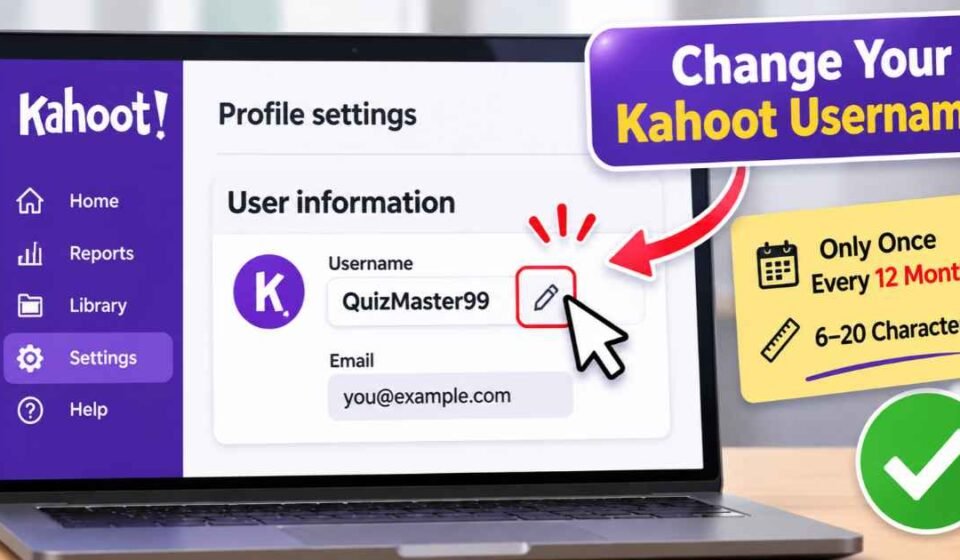
Quick Answer: How to Change Your Kahoot Username To change your Kahoot username, log into your account using a standard web browser. Click your personal avatar icon located in the top right corner and select “Profile settings” from the dropdown menu. In the “User information” section, locate the small pencil icon next to your current username and click it. Type your new desired name into the text box, or click the magic wand button for an automatic suggestion, and click “Change.” You can strictly only change your username once every 12 months.
Important Restrictions: The 12-Month Rule and Length Limits
Before you follow the steps to update your profile, you absolutely need to understand the platform’s strict rules regarding identity changes. If you make a typo during the update process, you will be stuck with that mistake for a very long time.
According to official platform documentation, you are permitted to change your username only once every twelve months. There are no exceptions to this rule. If you change your name today as a joke, you cannot change it back tomorrow. You must wait a full calendar year before the pencil editing icon becomes clickable again.
Your new username must also meet specific formatting requirements. The name must be between six and twenty characters long. It must be completely unique across the entire global platform. If another teacher or student anywhere in the world has already registered the exact name you want, the system will reject your request immediately.
Step-by-Step: How to Change Your Kahoot Username
Updating your profile is a straightforward process, provided you have not already made a change within the last year. We highly recommend performing these steps on a desktop web browser rather than a mobile device to ensure you have full, easy access to the entire settings dashboard.
First, navigate to the main website and complete a standard Kahoot login using your email, password, or your school’s Single Sign-On credentials.
Once you arrive at your main dashboard, look at the top right corner of your screen. You will see a small circular avatar icon. Click this avatar to open a dropdown menu.
From the dropdown menu, select “Profile settings.” This action takes you to a dedicated page containing your user information, billing details, and privacy controls.
Locate the “User information” section near the top of the page. You will see your current username listed there. Click the small pencil icon located right next to your current name. A text box will appear on the screen. Carefully type your new desired username into the box, double-checking for any spelling errors. Once you are certain the spelling is exactly what you want, click the “Change” button to save your new identity.
Using the Magic Wand Tool for Unique Names
Because the platform hosts millions of active users globally, finding a completely unique username can be incredibly frustrating. You might try typing your first and last name, only to see a red error message stating that the name is already taken by someone else.
If you are struggling to find an available name, the platform offers a helpful built-in feature to solve this problem. Next to the username text box in the settings menu, you will see a small gray icon shaped like a magic wand.
If you click this gray wand button, the system will automatically generate a unique, available username suggestion for you. You can click the wand multiple times until it generates a suggestion you actually like. Once you find a suitable suggestion that you don’t mind keeping for a year, click “Change” to lock it in.
Kahoot Username vs. Kahoot Nickname: What is the Difference?
One of the most common reasons people search for instructions on changing their name is because they are confused by the platform’s terminology. Many students search for a way to change their “username” when they are actually trying to change their “nickname.”
These are two completely different features, and they serve entirely different purposes during your experience on the platform.
Account Usernames (Permanent)
An account username is the permanent alias tied directly to your registered profile. This is the name you use to log into the platform every single day.
More importantly, this is the author name displayed publicly next to any quiz you create. If you want to know how to share a Kahoot with your colleagues or publish it to the global Discover tab, your username is permanently attached to that content as the creator. This permanent username is subject to the strict 12-month change restriction. You only need a username if you are actively creating quizzes or hosting games for others.
Game Nicknames (Temporary)
When a student prepares to Kahoot play a live game hosted by a teacher in a classroom, the temporary name they enter on their phone screen is a nickname, not an account username.
Students do not need to register an account or create a permanent username to participate in a live quiz. When they enter the game PIN on their phone or tablet, the screen simply asks for a “Nickname.” This is a temporary identifier that only exists for the duration of that specific game session. Once the game ends, the nickname disappears completely.
If a student enters a nickname they do not like, they cannot change it once they enter the waiting room. They must close their browser window entirely, re-enter the game PIN, and type a new nickname before the host starts the first question.
If inappropriate names appear during a live session, the person hosting the game has the power to click on the bad nickname on the smartboard and instantly remove that player from the lobby. The host can also enable a feature called the “Friendly Nickname Generator,” which prevents students from typing custom names entirely, forcing them to select from a spinning wheel of pre-approved adjectives and animal names.
Workaround: What to Do if You Cannot Change Your Username
If you attempt to change your username and discover that the pencil icon is greyed out, it means you have already changed your name within the last twelve months. The system is enforcing the mandatory waiting period.
There is no secret override button in the settings menu, and contacting customer support will not help. Support agents cannot bypass the 12-month restriction for individual users. If you absolutely cannot wait a year to change your public identity—perhaps because you accidentally used an inappropriate joke name and you now need to present a quiz to your corporate boss—you only have one option.
Creating a New Account and Transferring Kahoots
If you are permanently locked out of a name change, the only community-verified workaround is to abandon your current profile and create a brand-new account using a different email address.
During the registration process for the new account, you can select your desired, professional username right from the start. However, creating a new account means your new library will be completely empty.
To solve this problem, log back into your old account. Ensure that all the quizzes you previously created are set to “Public” visibility in their individual settings. Then, log out and log into your new account. Use the main search bar to find your old username, and locate your old quizzes. You can then click the three dots next to each quiz and select “Duplicate.”
This action creates a fresh copy of the quiz in your new account’s library, allowing you to present it under your new, professional username without having to rewrite all the questions from scratch.
Frequently Asked Questions
Why is the pencil icon next to my username greyed out? If the pencil editing icon or the “Change” button is greyed out and unclickable, it means you are currently restricted from making a change. This almost always means you have already changed your username within the last 12 months. You must wait until the full calendar year expires before the system will allow you to edit the text field again.
Can two people have the exact same Kahoot username? No. The platform requires every single username to be completely unique globally. If you try to change your name to something generic like “MathTeacher,” the system will reject it because another educator has already claimed it. This is why the magic wand auto-generator tool is so useful for finding available variations.
Will changing my username delete my saved quizzes? No. Changing your username only updates your public display alias. It does not affect your underlying data, your subscription status, or your personal library. All of your saved drafts, published quizzes, and historical game reports will remain exactly where they are in your account settings after the name change is complete.
Can I change my username on the mobile app? While you can access some settings on the mobile app, it is highly recommended to use a desktop web browser for account management. The mobile app interface often updates separately, and finding the pencil icon under profile settings is much easier on a full computer screen.