




























After finishing a live quiz, educators and corporate trainers need a reliable way to review participant performance, record grades, or analyze which topics confused their audience. The platform automatically collects this data in the background, but finding exactly how to download Kahoot reports into a usable spreadsheet format often confuses new hosts. This guide explains the exact steps to locate your game data, export it to your computer, and properly read the resulting Excel file.
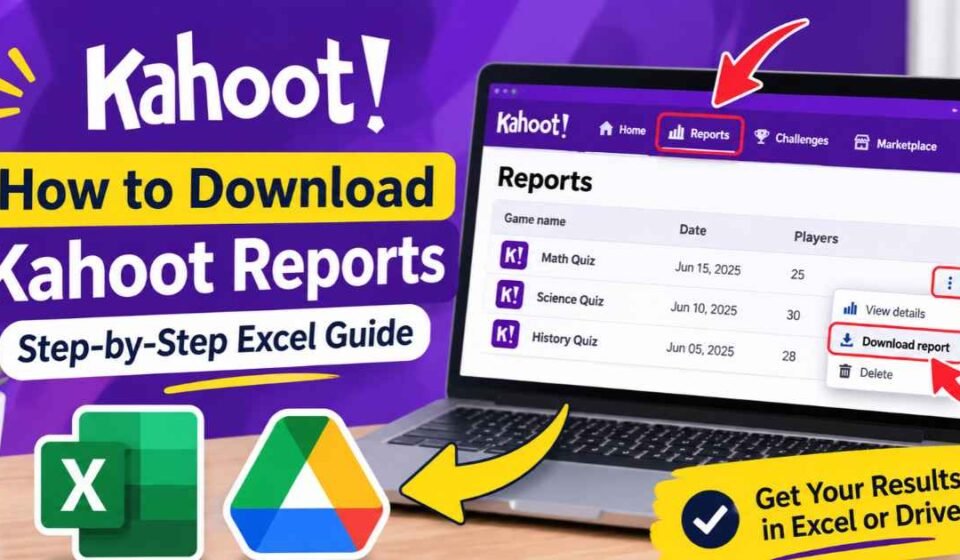
Quick Answer: To download your Kahoot report, log in to your hosting account using a desktop web browser. Click the Reports tab located in the top navigation menu. Find the specific game session you want to export and click the three vertical dots next to it to open the options menu. Select Download report from the dropdown list. You can then choose to save the file locally as an Excel spreadsheet (.xlsx) or export the data directly to a connected Google Drive account.
Prerequisites Before Downloading Your Kahoot Report
Before clicking through dashboard menus, you must ensure you are using the correct device and account type. Granular data extraction is designed primarily for desktop users. If you try to pull a detailed spreadsheet using the mobile app, you will only see basic viewing options. Always use a desktop web browser when managing large data sets so the files download correctly to your local hard drive.
You must also be logged into the specific account that originally ran the game. If a colleague hosted the quiz, they hold the data in their private account. You will need them to pull the file manually unless you are working within a shared team workspace and understand how to share a Kahoot and its resulting analytics with your department.
Step-by-Step: How to Export Kahoot Results to Excel
Extracting your game data takes only a few clicks once you understand the platform layout. Follow these exact instructions to save your quiz results locally.
Step 1: Log in to your hosting account. Once you bypass the login screen, spend a moment navigating your Kahoot dashboard to locate the primary top menu bar.
Step 2: Click the Reports tab. This dedicated section automatically archives all of your past live games, student-paced assignments, and specialized challenge modes.
Step 3: Scroll through the list to find the specific game session you want to review. Renaming your sessions immediately after playing helps prevent mixing up different classes or training groups when reviewing data months later.
Step 4: Click the three vertical dots located next to the session name. This opens the action menu. Select Download report from the dropdown list to initiate the file transfer.
Saving Directly to Google Drive
When you click the download option, the platform usually prompts you to choose a destination. Downloading the file directly to your computer saves it as a standard .xlsx Excel file in your local downloads folder.
Alternatively, you can select the Google Drive option. This requires you to authenticate your Google account, which then saves a copy of the spreadsheet straight to your cloud storage. Many teachers prefer this method because it simplifies sharing grading data with co-teachers or school administrators.
Understanding Your Downloaded Kahoot Spreadsheet
Opening the exported Excel file can feel overwhelming because it contains multiple tabs of information. According to Kahoot’s official documentation, the spreadsheet organizes your data into several distinct sheets to help you analyze different aspects of the game.
The Overview tab offers high-level metrics about the session. It shows the total number of players, average score, and overall performance percentages. This sheet works well for quick administrative summaries rather than individual student tracking.
The Final Scores tab provides a clear leaderboard that ranks players based on their total points. Understanding how Kahoot scoring works helps you convert these points into standard percentages for an official gradebook.
The Kahoot! Summary and Question Details sheets break down the quiz question by question. You can see exactly how many people answered correctly or incorrectly for specific prompts. This data reveals which topics your audience struggled with, indicating where you might need to reteach a lesson.
The Raw Data tab contains unfiltered, unformatted data strings. Advanced users rely on this specific sheet to build custom pivot tables or format the results for import into third-party learning management systems.
Important Export Limitations to Know
The platform enforces a few technical boundaries regarding data exports. If you run massive quizzes or rely heavily on mobile devices, you need to understand the built-in limits before expecting a complete data profile.
Reports for games containing more than 40 questions will only export the “Raw data” tab. The system will not generate the neatly formatted summary and final score sheets for these extra-large games, forcing you to format the columns manually.
If you host a game exclusively through the mobile app, the system cannot collect the “Get feedback” metrics at the end of the session. That specific data column will appear empty in your spreadsheet regardless of how players responded.
Troubleshooting Missing Kahoot Reports
Educators frequently report issues finding their data on community forums, often noticing that they can only see the top three players instead of their entire class roster. This restriction usually happens due to subscription tier limits.
Certain basic accounts or downgraded paid tiers lock detailed participant tracking behind a paywall. If you suddenly cannot download full reports, check your free Kahoot account status to verify whether a previous premium trial or school-sponsored license recently expired.
If a specific game is completely missing from your Reports tab, check your Library Trash folder. Someone with access to your account may have accidentally deleted the session, which instantly removes the analytics from your main reporting view.
Exporting vs. Importing: A Quick Clarification
Many users search for information about spreadsheets when they actually want to turn a list of questions into a new quiz. This causes significant confusion when reading platform guides, as the workflows are entirely different.
Downloading a report means extracting data out of the platform after a game finishes. Importing means uploading an Excel template into the platform to quickly generate new questions before a game begins. If you are trying to create a game from a spreadsheet rather than retrieve grades, you need to use the platform’s question importer tool inside the game creator rather than the Reports tab.