


















Educators frequently use digital trivia games to review material before a big test. However, traditional formats force students to compete individually, which often rewards rapid guessing and creates anxiety for students who process information slower.
If you want your classroom to focus on communication rather than individual reaction speed, you need to change your approach. Grouping students together forces them to debate the correct answer, justify their reasoning, and work collaboratively to climb the leaderboard.
Many teachers avoid using this format because they do not understand how the software handles groups, especially when a classroom lacks enough tablets or laptops for everyone. This guide explains exactly how to set up group play, manage the required devices, and bypass frustrating settings like mandatory discussion timers.
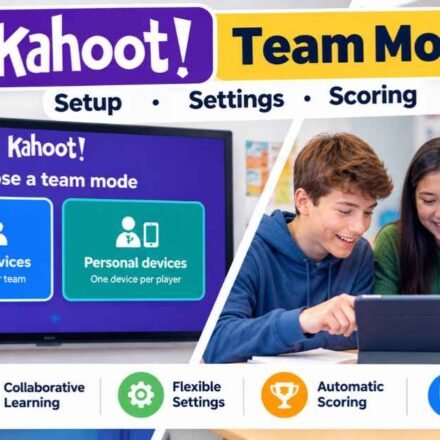
Quick Answer: How to Set Up Kahoot Team Mode: Kahoot Team Mode is a collaborative format where players group up to answer questions together. To start, launch a game and select Team Mode instead of Classic. You must choose between Shared Devices (one device per team) or Personal Devices (everyone uses their own phone). If using shared devices, a team captain enters the team name and player nicknames. A mandatory five-second Team Talk timer gives groups time to discuss answers. In Personal Devices mode, the host can disable this timer and manually assign teams.
What is Kahoot Team Mode?
Team Mode shifts the primary focus of the game from individual speed to group consensus. Instead of thirty separate names appearing on the main screen, the leaderboard only displays the names of the competing groups.
This format provides several immediate benefits in an educational setting. It removes the social pressure of being at the very bottom of the leaderboard alone. If a group gets a question wrong, the mistake is shared among several peers.
More importantly, it forces students to verbalize their thought process. They cannot simply tap a shape on their screen in silence. They must explain why they believe an answer is correct, creating peer-to-peer learning opportunities during the actual game.
Shared Devices vs. Personal Devices: Which Should You Choose?
When the developers first launched this format in 2016, classrooms had very limited access to technology. The platform originally offered only one way to play as a group. Today, the software provides two completely different technical setups.
Before the game begins, the software asks the host to select either the Shared Devices option or the Personal Devices option. Your choice depends entirely on the hardware available in your room and how much control you want over the team rosters.
How to Play with Shared Devices (One Device Per Team)
The Shared Devices option is designed specifically for classrooms that do not have enough computers or tablets for every single student. You only need one working device for every group of three or four students.
When you select this option, the students physically huddle around a single tablet or smartphone. The group must nominate a “Team Captain.” The captain holds the hardware and acts as the official data entry person for the group.
The captain types in a creative team name on their screen. Next, the software prompts the captain to type in the real nicknames of every person looking at that specific screen. Once all the names are entered, the group appears on the main classroom board, ready to play.
How to Play with Personal Devices (One Device Per Player)
The Personal Devices option works best in modern classrooms where every student has their own assigned Chromebook, laptop, or smartphone. In this format, students still form teams, but everyone holds their own piece of hardware.
When students log into the game, they do not share a screen. Instead, the software links their individual accounts together on the backend server.
When a question appears on the smartboard, every student taps the answer on their own personal screen. The game then calculates a collective score based on how the entire group performed. This format keeps everyone physically engaged with their own device while still requiring verbal communication to succeed.
Step-by-Step Guide to Launching the Game
Setting up the game requires a few specific clicks before your audience enters the room. You cannot switch a game from classic individual play to group play after the students have already logged in with the game PIN.
When you are ready to begin, the Kahoot host must open their library and click the “Start” button on the desired quiz. A lobby screen will appear asking you to choose a game format.
Click the button labeled “Team Mode.” The screen will immediately split, asking you to select either Shared Devices or Personal Devices.
Click your preferred hardware setup. The system will then generate the unique game PIN and display it on the main projector so your students can begin logging in. Wait until every group or individual appears on the screen before clicking start.
How to Turn Off the “Team Talk” Timer
One of the most frequent complaints from teachers involves the mandatory “Team Talk” feature. If you have ever run a group game, you likely noticed a five-second countdown timer that appears before the actual question timer begins.
During these five seconds, students cannot submit an answer. The screen tells them to discuss the question with their peers. While this sounds great in theory, many teachers find that it slows the pace of the game down too much, causing students to lose focus or become bored.
Why is Team Talk Locked on Shared Devices?
If you selected the Shared Devices option during setup, you cannot turn the Team Talk timer off. The software permanently locks this setting to ensure fairness.
The developers designed this intentionally. If four students are sharing one iPad, the student physically holding the tablet has a massive advantage. If they know the answer immediately, they might tap the screen before the other three students even finish reading the question. The mandatory five-second delay forces the captain to wait, ensuring everyone in the huddle has a chance to read the options and agree on the answer.
Disabling the Timer for Personal Devices
If you selected the Personal Devices option, the five-second delay is entirely optional. Because every student holds their own screen, there is no risk of a single captain hijacking the gameplay and answering before their peers are ready.
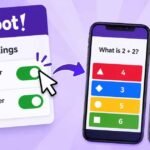
To disable the feature, open the host settings menu by clicking the gear icon before the game starts. Scroll down through the options until you find the toggle switch for “Team Talk.” Simply click the switch to turn it off. When your students Kahoot play the game, the questions will load immediately without any forced discussion delays.
How to Assign Teams Before the Game Starts
If you allow students to pick their own groups, best friends will immediately flock together, leaving shy students feeling excluded. To prevent this, the software offers several ways to manage how groups are formed.
These assignment features are only available when you select the Personal Devices option. If you use the Shared Devices option, the students physically organize themselves in the room, so the software cannot control the rosters on the backend.
Allowing Random Team Generation
The easiest way to organize a classroom is to let the computer do the work. In the host settings menu, select the option for “Auto-generated teams” before you generate the game PIN.
When students enter the game PIN on their devices, the software automatically assigns them to a group, such as the Blue Team or the Red Team. The algorithm actively balances the numbers, ensuring that every group has roughly the same amount of players. This prevents a scenario where eight students join one group while only two students join another.
Manual Assignment and Player Choice
Depending on your specific subscription tier, you may have access to advanced roster settings. If you have a premium educator account, you can select “Teacher-assigned teams.”
This allows you to drag and drop specific student names into specific groups on your host screen before the first question begins. This is highly useful for separating disruptive students or ensuring that different skill levels are evenly distributed.
Alternatively, you can select “Player-chosen teams.” This allows students to look at a list of available groups on their phone and manually tap which one they want to join. If you use this setting, you must actively monitor the room to ensure the groups remain relatively balanced.
How Scoring Works in a Group Setting
Understanding how points are distributed helps prevent arguments when the final podium appears on the screen. The scoring math changes completely depending on which hardware setup you chose at the beginning of the lesson.
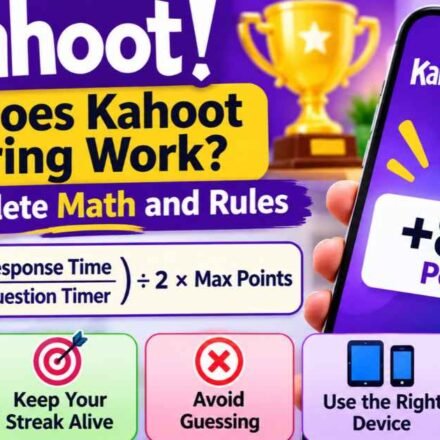
If you chose the Shared Devices format, scoring works exactly like a standard individual game. The team captain taps the screen once. The system applies the standard time-decay formula to that single tap. If the captain taps the correct answer in two seconds, the entire group receives roughly 950 points.
If you chose the Personal Devices format, the math becomes much more complicated. Every student taps their own screen. The software records the accuracy and the exact reaction speed of every single person in the group.
The system then calculates an average score based on the combined data and awards that average number to the team’s total. If three students answer correctly in one second, but the fourth student guesses the wrong answer, the team’s average score drops significantly. This forces highly competitive students to actively help their struggling peers understand the material.
Troubleshooting Common Team Mode Issues
Running a live game with multiple devices occasionally leads to technical hiccups or classroom management challenges. Here is how to handle the two most common disruptions.
Managing Inappropriate Team Names
If you allow students to type their own team names in the Shared Devices mode, you might encounter inappropriate words on your smartboard.
As the host, you have complete control over the lobby. Simply use your mouse to click on any inappropriate team name displayed in the waiting room. The system will immediately erase the bad name and replace it with a randomly generated, safe word. You can also turn on the “Friendly Nickname Generator” in the settings menu to prevent custom names entirely.
Handling Wi-Fi Disconnections Mid-Game
If a student is playing on a personal device and their Wi-Fi connection drops, their phone will disconnect from the server.
The software handles this automatically. It will temporarily remove their data from the group’s scoring average so the team is not penalized for a missing answer. If the student reconnects using the original game PIN, they will automatically rejoin their assigned group and resume contributing to the score.
Alternative Collaborative Formats
While Team Mode focuses entirely on live, synchronous collaboration inside a physical classroom, it is not the only way to foster teamwork.
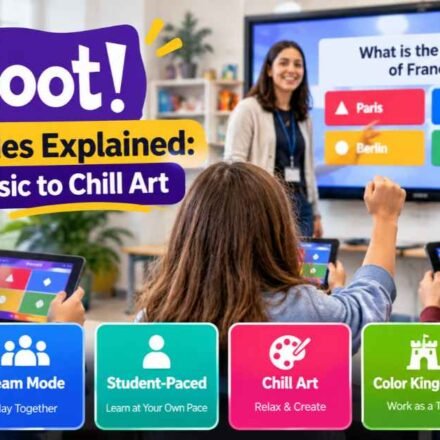
The platform recently introduced several other Kahoot game modes designed for different learning environments. For example, the “Color Track” mode allows students to answer questions individually to collect resources, which they then pool together to reveal a larger image on the main screen.
Similarly, the asynchronous “Missions” feature allows students to complete quizzes at home. As they answer questions correctly, they contribute to a shared progress bar that eventually launches a virtual rocket. If your classroom struggles with the fast-paced noise of live group trivia, these alternative modes offer a much quieter way to build teamwork.
Frequently Asked Questions
Can I switch to Team Mode if the game has already started? No. You cannot change the fundamental structure of the game once the PIN is generated and students begin joining the lobby. If you accidentally start a classic game, you must close the lobby, kick everyone out, and restart the game from your library menu to select the group format.
Do we need a paid account to use Team Mode? The basic Shared Devices version of Team Mode is currently available to free users. However, advanced settings like Personal Device grouping, manual teacher assignments, and the ability to disable the Team Talk timer often require a premium Kahoot!+ or EDU subscription. Check your specific account billing page to see which features are currently unlocked for your profile.
What happens if we have an uneven number of students? If you are using the auto-generated team setting on personal devices, the algorithm will distribute the players as evenly as possible. One team may have one extra player, but the scoring average calculation ensures that the smaller teams are not mathematically penalized for having fewer members.