





















You type the game PIN into your phone, enter your nickname, and wait for the screen to load. Instead of entering the active game lobby, you see a spinning loading wheel. A few seconds later, an error message pops up saying the system is trying to reconnect.
When a trivia game crashes in the middle of a live classroom lesson, panic usually spreads quickly. Students complain that the game is broken, while teachers frantically refresh their web browsers hoping to fix the problem.
The first question everyone asks is whether the platform’s global servers have crashed. However, in the vast majority of cases, the global servers are operating perfectly fine. The connection failure is almost always caused by a strict school network firewall blocking the specific background code the game needs to run smoothly.
This troubleshooting guide explains how to check the official server status to see if there is a massive outage. If the servers are active, we will show you how to use the official diagnostic tool to figure out exactly why your local WiFi is blocking the game, so you can fix it immediately.
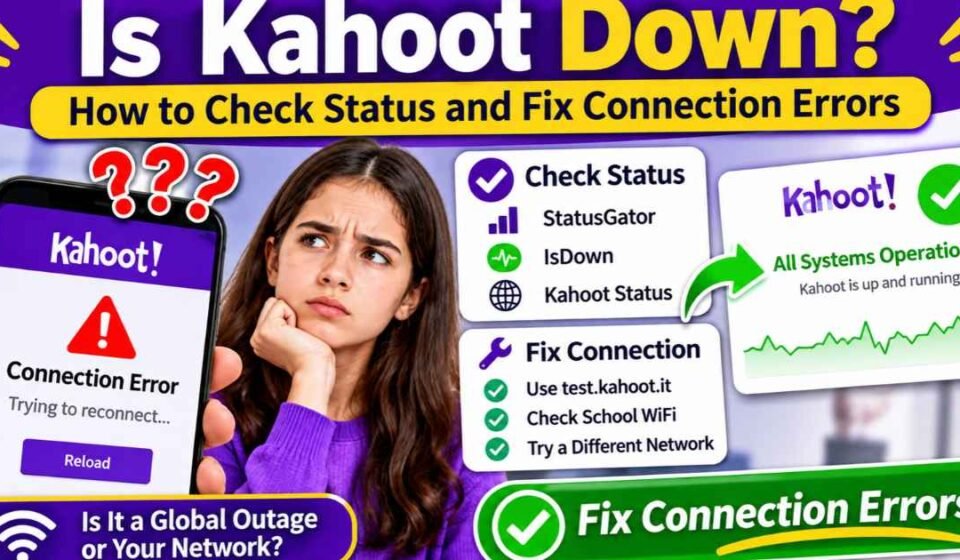
Quick Answer: Is Kahoot Down? To find out if the servers are currently down, avoid relying on social media rumors. Instead, check an official status aggregator like StatusGator or IsDown, which track the platform’s developer API directly. If those trackers show the servers are fully operational, the issue is on your end. Open your web browser and go to test.kahoot.it. This official diagnostic tool will tell you instantly if your school’s network firewall is blocking the specific websocket connections needed to play the game.
How to Check the Official Kahoot Server Status
When you suspect a massive server outage, you need verified technical data rather than crowdsourced complaints. Many popular down-detector websites rely entirely on user comments to determine if a site is broken.
This crowdsourced method is incredibly unreliable for educational software used in schools. If three hundred students in the same high school cannot connect because their local IT director accidentally blocked the website, they will flood the internet with complaints.
The website will look like it crashed globally on these tracker sites, even though it is working perfectly fine for the rest of the world. To get an accurate picture of the platform’s health, you must check an automated status aggregator like IsDown, IncidentHub, or StatusGator.
These automated services monitor the official developer API directly, pinging the servers every few minutes. They do not just tell you if the entire site is up or down. They tell you exactly which specific components are failing.
For example, a status page can verify if the main website crashed, or if there is just a minor, isolated disruption affecting YouTube video playback on quiz slides. If the status page shows green checkmarks, the global servers are fine, and your problem is entirely local.
Is Kahoot Down Globally, or Is It Just Your School WiFi?
If you check the automated status trackers and they show the platform is operating normally, the problem is localized to your specific computer or your specific building.
To troubleshoot network errors effectively, you must understand how the platform actually operates. The developers use two completely different servers to run a single game without crashing.
Host Servers vs. Player Servers
The system divides the heavy processing workload to prevent crashes during busy school hours. The main creator server handles the backend work. This server manages account creation, billing, quiz building, and loading the content library.
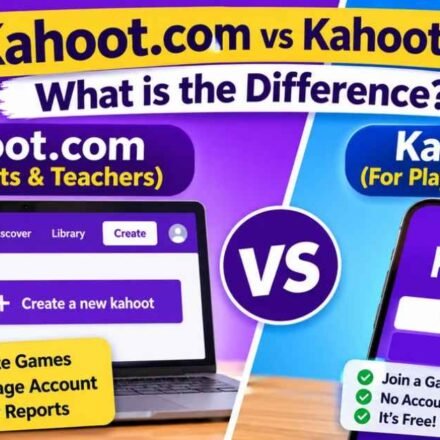
The player server handles the live gameplay and the massive influx of student PIN entries. To understand how these two sides interact, you can read our complete breakdown comparing kahoot.com vs kahoot.it.
If the main creator servers experience an outage, the teacher will not be able to complete their Kahoot login to access their saved quizzes. However, the student-facing site might still be working perfectly fine during that same hour.
Conversely, a teacher might be able to log in and launch a game on the smartboard without any problems. Yet, the students will fail to connect because their specific player servers are blocked by a strict classroom content filter.
How to Use the Kahoot Network Test Tool (test.kahoot.it)
You do not have to guess why your connection is failing or manually check your internet router settings. The developers built a diagnostic page specifically to help teachers bypass strict school firewalls.
If you are experiencing severe lag or instant disconnections, open a new browser tab and type test.kahoot.it into the URL bar. This action will launch a simple diagnostic dashboard that runs automated checks on your current internet connection.
It verifies if your school is blocking the specific URLs required to play. It tests your raw internet download speed to ensure you have enough bandwidth. It also checks if your current web browser version is officially supported.
Most importantly, the diagnostic tool checks your network websockets. If you see a red X next to the websocket test, you have found the exact reason your game keeps crashing.
How to Fix Local Connection Errors (For IT Departments)
When a student attempts a Kahoot join and the screen immediately says “Trying to reconnect,” the issue is almost always a websocket failure.
A websocket is a highly specific type of internet protocol. Standard websites load a page of text and then stop communicating with the server. A live trivia game requires a constant, open, two-way connection so the timer and the scores can update in a fraction of a second.
Many aggressive school network security suites, antivirus programs, and firewalls view open websocket connections as a major security threat. The firewall sees a connection staying open for too long and automatically kills it, causing the game to drop immediately.
Unblocking Websockets and Domains
If your diagnostic test reveals a websocket failure, you must contact your school or corporate IT department. You cannot fix this issue on your own computer or smartphone.
You must ask your network administrator to explicitly allowlist the required domains in the firewall software. According to official technical documentation, the IT department must allow access to ports 80 and 443.
They must also specifically allowlist the following domains to bypass the security software entirely:
- kahoot.it
- play.kahoot.it
- create.kahoot.it
- apis.kahoot.it
- wss://play.kahoot.it/cometd
- wss://kahoot.it/cometd
Those last two items starting with “wss://” are the actual websocket addresses. If the IT department fails to unblock those specific addresses, the game will continue to crash every time you try to host a session.
Network Bandwidth and Local Lag
Sometimes the diagnostic tool shows green checkmarks across the board, but the game still stutters and lags terribly. When this happens, the issue is not a blocked firewall. The issue is raw bandwidth speed.
A live trivia game requires a significant amount of local data to run smoothly. The teacher’s computer must download the text, load the high-resolution images, and stream embedded YouTube videos simultaneously.
If you are hosting a game for a massive lecture hall with 100 students, your local school router might buckle under the pressure. Official platform documentation recommends having a download speed of at least 20 to 30 Mbps for large games.
If your classroom WiFi is notoriously weak, you should avoid using high-definition videos in your quiz slides. You should also ensure that students are not running bandwidth-heavy apps like TikTok or Spotify in the background on their phones while trying to play.
What to Do if You Disconnect During a Live Game
If the school network drops momentarily during a live game, do not panic, and absolutely do not touch your screen.
If your phone says “Trying to reconnect,” you just need to wait. The software is designed to automatically re-establish the connection the moment your local WiFi stabilizes.
If you let the system reconnect automatically, you will keep all the points you already earned. Your position on the leaderboard will remain exactly the same as it was before the brief outage.
If you get impatient and manually press the “Refresh” button on your web browser, you will ruin your score. Refreshing the page kills your current session entirely. You will be forced to re-enter the game PIN, choose a brand-new nickname, and start over at zero points.
Frequently Asked Questions
Does the mobile app work during a browser outage? Usually, no. The official mobile app connects to the exact same player servers as the web browser. If the primary servers are down globally, neither the app nor the website will work. If the app works but the browser fails, you likely have a strict ad-blocker installed on your computer.
Can ad-blockers cause connection issues? Yes. Strict privacy extensions and heavy ad-blockers can mistakenly block the background code required to run the game. If the diagnostic tool shows a failure on your personal computer, disable your ad-blocker for that specific website, refresh the page, and try again.
Do I need a premium account for better server stability? No. The platform does not prioritize network traffic based on how much money you pay. Free users and premium educational subscribers share the exact same server infrastructure. Upgrading your account will not fix your local network firewall problems. Server access is identical for everyone; whether you are asking is Kahoot free to use or paying for a premium EDU subscription, an outage affects all tiers equally.