











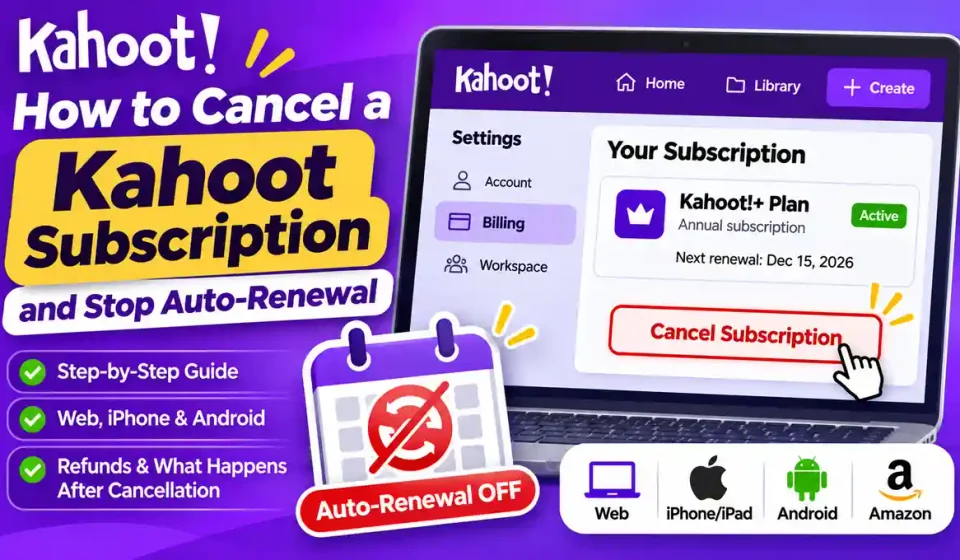

A Kahoot subscription can renew automatically even when you’re no longer using its paid features. If you’ve finished a course, changed teaching tools, or decided you don’t need your current plan, canceling before the next billing date can prevent another subscription charge.
The steps depend on where you purchased the subscription. A plan bought directly from Kahoot is managed differently from one purchased through Apple, Google Play, or Amazon. Here’s how to cancel through the correct provider, confirm that renewal has stopped, and understand what happens afterward.
Quick Answer
To cancel a Kahoot subscription, check who billed you. If you subscribed on Kahoot’s website, sign in, open Billing, select Manage subscription, choose Cancel Subscription, and complete the final confirmation. If Apple, Google Play, or Amazon processed your payment, cancel through that provider’s subscription settings instead. Cancellation stops future auto-renewals but usually does not refund the current billing period. Paid features normally remain available until that period ends. Verify the cancellation status and save the confirmation, especially if your next renewal is approaching, to avoid another charge.
How to Cancel a Kahoot Subscription on the Website
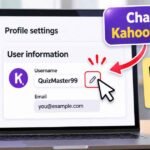
If you purchased your subscription directly through Kahoot’s website, you can usually stop automatic renewal from your account’s Billing settings. You don’t need to delete your account, remove your quizzes, or wait until the final day of your paid period.
Before starting, sign in to the account associated with the subscription. If you use separate accounts for school, work, and personal activities, check which one received the purchase confirmation.
Step 1: Open Your Billing Settings
- Visit Kahoot’s official website and sign in.
- Open your account settings menu.
- Select Billing from the Settings options.
- Locate your active subscription.
- Click Manage subscription.
The Manage subscription button opens the secure billing area for an eligible web purchase. If the Billing page doesn’t show your paid plan, confirm that you’re using the correct account before assuming the subscription has ended.
For help finding general account controls, see our guide to the Kahoot account dashboard. The cancellation itself must still be completed through Kahoot’s official billing system.
Step 2: Stop Automatic Renewal
Once you’re in the subscription-management area:
- Find the Subscription section.
- Select Cancel Subscription.
- Review the information displayed about cancellation.
- Continue through the required prompts.
- Confirm your decision on the final screen.
- Wait for the cancellation confirmation to appear.
According to Kahoot’s official cancellation guide, the process isn’t complete until the system confirms the cancellation.
This final step matters because clicking the first cancellation button may only begin the process. If you leave before confirming, your subscription could remain scheduled to renew.
Step 3: Confirm That Your Subscription Is Canceled
After completing the process, return to Billing and check the subscription status. Look for a canceled status, a scheduled expiration date, or other confirmation that the next automatic renewal has been stopped.
Save the confirmation message or take a screenshot for your records. If you’re approaching a renewal date, checking the billing status again can help you catch an incomplete cancellation before another payment is processed.
For example, if an annual subscription is scheduled to renew on December 15 and you successfully cancel renewal on November 20, the subscription will normally remain active through the prepaid period but won’t automatically renew for another year.
That doesn’t mean the unused portion of the current year will be refunded. Cancellation and refunds are separate processes.
How to Cancel Kahoot on iPhone, Android, or Amazon
If you purchased a Kahoot subscription through an app store, you must generally cancel it through the same company that processed the purchase.
Kahoot’s mobile subscription guide explains that Apple, Google, and Amazon control billing matters for subscriptions purchased through their stores. Kahoot cannot directly administer those purchases from its website.
| Purchase Provider | Where to Cancel | Account to Use |
|---|---|---|
| Kahoot website | Kahoot Billing → Manage subscription | Original Kahoot account |
| Apple App Store | Apple Settings → Subscriptions | Apple Account used for purchase |
| Google Play | Google Play → Subscriptions | Google Account used for purchase |
| Amazon Appstore | Amazon Appstore subscription management | Amazon account used for purchase |
Cancel a Kahoot Subscription on iPhone or iPad
If your subscription is billed by Apple, follow these steps:
- Open the Settings app on your iPhone or iPad.
- Tap your name at the top of the screen.
- Select Subscriptions.
- Find the Kahoot subscription.
- Tap Cancel Subscription.
- Follow any remaining confirmation instructions.
Apple’s official cancellation instructions explain that the button may appear farther down the subscription page, so scroll if necessary.
If there’s no cancellation button or an expiration message appears in red, Apple says the subscription is already canceled. Check the displayed details to understand when access will end.
If Kahoot isn’t listed, confirm that you’re using the Apple Account that originally made the purchase. Apple’s purchase receipts can help identify the correct account.
Cancel Kahoot Through Google Play on Android
If Google Play handles your subscription, use the account that purchased it.
- Open the Google Play Store on your Android device.
- Tap your profile icon.
- Go to Payments & subscriptions → Subscriptions, or open your Google Play subscriptions directly.
- Select the Kahoot subscription.
- Tap Cancel subscription.
- Follow the instructions to confirm cancellation.
You can also use the Google Play subscriptions page from a computer. On the web, Google may ask you to select Manage, choose Cancel subscription, and confirm a reason.
Google’s subscription support guide confirms that uninstalling an app doesn’t cancel its subscription. You must stop renewal through the billing account.
If the plan doesn’t appear, check any other Google Accounts you use. A subscription purchased from Kahoot’s website or Apple’s store won’t appear in Google Play simply because you currently use an Android phone.
Cancel a Kahoot Subscription Through Amazon Appstore
If Amazon originally billed you for Kahoot, use the Amazon account associated with that purchase.
- Sign in to the Amazon account used for the subscription.
- Open the Amazon Appstore subscription-management area.
- Find your Kahoot subscription.
- Select the available cancellation or auto-renewal control.
- Review and confirm the change.
You can start from the Amazon Appstore subscription portal linked in Kahoot’s mobile billing documentation.
Amazon’s interface may vary by device and account, so use the current subscription-management controls rather than relying on an old screenshot.
What If You Changed Phones?
Changing devices doesn’t automatically move your subscription to another billing provider. If you purchased Kahoot through Google Play and now use an iPhone, the Google Account that processed the purchase still manages billing.
The same principle applies when moving from an iPhone to an Android phone or computer. Check your original receipt to identify the provider before attempting cancellation.
How to Stop Kahoot Auto-Renewal or Cancel a Free Trial
Stopping auto-renewal means your subscription won’t automatically start another billing period after the current one ends. It doesn’t necessarily end paid access immediately or reverse an earlier payment.
For most prepaid Kahoot web subscriptions, you can submit the cancellation during your current billing period without waiting until the day before renewal.
Check Your Renewal Date Before Canceling
Open your subscription-management page and review its billing details. Confirm the current plan, next renewal date, and subscription status before making changes.
It’s worth checking whether your plan is monthly, annually prepaid, or structured under different payment terms. The amount and timing of remaining obligations depend on the agreement you accepted when purchasing.
Kahoot’s official web cancellation guidance states that paid features remain available through the current prepaid period after ordinary renewal cancellation.
For an annual plan, canceling renewal stops the next annual cycle. It doesn’t automatically refund unused months or remove any outstanding obligations under a separate payment arrangement.
How to Cancel a Kahoot Free Trial
Kahoot doesn’t offer free trials on every plan. According to its official trial documentation, eligible plans display a Start free trial option, and the regular trial period is seven days unless the offer states otherwise.
Kahoot’s support team also stated in May 2026 that web subscription trials weren’t being offered at that time. Availability can change, so don’t assume an advertised seven-day trial is available for your particular plan.
If you already have an active trial:
- Identify whether Kahoot or an app store manages it.
- Open the relevant subscription settings.
- Find the trial or associated paid subscription.
- Cancel renewal before the applicable deadline.
- Complete the final confirmation.
- Check the displayed expiration or billing status.
Apple recommends canceling trial subscriptions at least 24 hours before the trial ends if you don’t want them to renew. Other providers and individual offers may have their own timing requirements.
Trial access can also end differently from ordinary prepaid access. Review the terms of the specific trial instead of assuming you’ll retain every benefit until the original trial end date.
How to Verify Auto-Renewal Is Turned Off
The most useful confirmation is the subscription status shown by the provider that bills you. Check the management page after completing every cancellation prompt.
If you still see an active upcoming renewal and a cancellation option, review whether the process was completed. An email, screenshot, or account confirmation can help if you later need to dispute another charge.
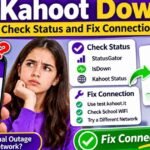
Why Can’t I Cancel My Kahoot Subscription?
Sometimes the Cancel Subscription button is missing, or you can’t find an active plan even though your payment card has been charged.
These issues may involve the billing provider, the account used for purchase, or workspace permissions rather than a technical problem with the cancellation button.
| Problem | Possible Explanation | Recommended Check |
|---|---|---|
| No Cancel button in Kahoot Billing | App-store purchase | Check Apple, Google Play, or Amazon |
| Subscription isn’t visible | Wrong account | Match the purchase receipt to the account |
| Google Play doesn’t show Kahoot | Different Google Account or provider | Check purchase history |
| Apple doesn’t show Kahoot | Different Apple Account or provider | Check Apple receipts |
| Workspace member can’t cancel | Billing restricted to owner | Contact Workspace owner |
| AccessPass has different controls | Separate content subscription | Use AccessPass cancellation flow |
| Charges continue | Incomplete cancellation, another plan, or earlier renewal | Review dates, confirmation, and transactions |
The Cancel Button Is Missing
First, determine where the original payment was processed. If you purchased through Apple or Google, Kahoot may direct you to the relevant store rather than providing its standard web cancellation button.
If you can’t find a subscription in any account, review your purchase receipts, bank statement description, and the email address associated with the original order.
A June 2026 Reddit discussion described a user who couldn’t locate a subscription despite reporting recurring charges. That experience doesn’t establish a platform-wide problem, but it illustrates why identifying the billing account is often the most important troubleshooting step.
If the charges remain unexplained, contact the provider that processed them. Share transaction information through its secure support channel, not in public comments.
You Have a Workspace or Team Subscription
Multi-license Kahoot subscriptions have ownership-based billing permissions.
Kahoot’s official documentation explains that only Workspace owners can cancel a team subscription. An ordinary member or administrator may be able to use paid tools without having permission to manage the organization’s recurring payment.
If an owner cancels the subscription, the change affects the licenses associated with that workspace, including access for its admins and members when the paid period ends.
If you use Kahoot through a school or employer, identify the Workspace owner before changing anything related to a team subscription.
How to Cancel Kahoot AccessPass
Kahoot!+ AccessPass is a content subscription with a separate cancellation process. Its controls are not identical to those used for ordinary feature subscriptions.
According to Kahoot’s AccessPass cancellation guide, the web process is:
- Sign in to your Kahoot account.
- Open Billing from your account settings.
- Find the AccessPass subscription section.
- Click Manage subscription.
- Select Manage your subscription in Stripe.
- In the subscription area, choose Cancel Plan.
- Complete the confirmation prompts and any requested cancellation reason.
Don’t stop at the first Cancel Plan button. Kahoot explains that cancellation isn’t complete until the final confirmation has been submitted.
Afterward, check the AccessPass management page again to verify its status.
What If Kahoot Keeps Charging You?
First, compare the payment date with your cancellation date. A charge processed before you successfully canceled renewal is different from a new charge processed afterward.
Check whether you have a second plan, an AccessPass subscription, or billing through another account. A family member or organization may also have used a different billing identity.
For a direct web purchase, contact Kahoot Support. For an app-store purchase, use Apple, Google, or Amazon billing support.
If you suspect a transaction is unauthorized, notify the relevant provider and your card issuer promptly. Keep account and card information private while requesting assistance.
Can You Get a Refund After Canceling Kahoot?
Canceling a Kahoot subscription doesn’t automatically provide a refund. Ordinary cancellation stops future renewal, while a refund or withdrawal request concerns money already paid.
Kahoot’s published policy says charges for an existing prepaid period generally aren’t returned simply because you cancel. Any applicable refund rights or exceptions must be evaluated separately.
Kahoot’s Refund and Withdrawal Policy
According to Kahoot’s official refund policy, an eligible consumer may have a right to withdraw from certain feature subscriptions within 14 days of the original purchase.
That right depends on the applicable jurisdiction and the subscription’s terms. It should not be interpreted as a guaranteed 14-day refund for every customer in the United States.
A qualifying withdrawal is different from standard renewal cancellation because it can end the subscription immediately and result in a refund under the relevant conditions.
Kahoot explains that the withdrawal option isn’t always available through ordinary self-service cancellation. Depending on your jurisdiction, you may see a withdrawal control under Manage subscription or need to contact support.
Are AccessPass Refunds Different?
Yes. Kahoot distinguishes feature subscriptions from content subscriptions such as AccessPass and certain marketplace purchases.
Its refund policy states that the ordinary withdrawal right does not apply to those immediately accessible content subscriptions in the same way. This is because access to the purchased premium content begins when the purchase is completed.
If a payment was made in error or you believe an exception applies, you can still contact support for a review. However, submitting a request doesn’t guarantee approval.
Who Handles App-Store Refunds?
If you paid through Apple, Google Play, or Amazon, that provider handles the refund request under its own terms.
Kahoot states that its support team cannot directly manage purchases processed by those third-party stores. Contacting Kahoot alone may therefore be insufficient if the payment was handled by Apple or Google.
For any refund request, keep the original receipt, purchase date, amount, and relevant cancellation confirmation available.
What If You Were Charged After Canceling?
Review whether the charge occurred before or after the confirmed cancellation. Then verify that the correct subscription and billing provider were involved.
If you successfully stopped renewal before the applicable deadline but another renewal payment was processed, submit the confirmation and transaction details for review.
Avoid deleting your account while the issue remains unresolved. Account deletion doesn’t automatically cancel recurring billing or initiate a refund.
What Happens to Your Kahoot Account After Cancellation?
For a standard web subscription, canceling renewal normally allows you to keep using the current paid features until the prepaid billing period ends.
After that date, Kahoot says the account moves to basic access. Your account isn’t automatically deleted, but the features available to you may change.
Do You Lose Your Saved Kahoot Quizzes?
Kahoot’s cancellation documentation explains that content stored in your personal folders remains available after the subscription expires.
You can still host games using those saved Kahoots, subject to the capabilities of your remaining account access.
However, editing has an important limitation. If a saved game uses premium question types or features that aren’t included in your basic plan, you may need to remove those elements before you can save new changes.
This is different from losing the quiz entirely. Review important games with paid elements before your subscription expires so you understand what might need updating.
What Happens to Premium Features?
Once paid access ends, subscription-only tools may no longer be available. The exact limitations depend on the plan you purchased and the basic features offered at that time.
For example, a teacher who built a quiz with a paid question type might still be able to host the saved game but need to remove that question type before saving edits on a basic plan.
You can compare the remaining options in our guide to Kahoot free features.
Shared workspaces can have additional ownership and permission restrictions. Don’t assume personal-folder retention rules apply identically to every resource owned by an organization.
Can You Reactivate a Canceled Subscription?
Yes, eligible Kahoot subscriptions can be reactivated.
According to Kahoot’s reactivation guide, a canceled subscription that’s still within its paid period may display Reactivate subscription in Billing.
Be careful: selecting this option reverses your earlier cancellation and turns automatic renewal back on.
If the subscription has expired, Kahoot may offer Renew subscription instead. Some older plans are no longer sold, so you might need to choose from currently available subscriptions.
Frequently Asked Questions
Does Deleting the Kahoot App Cancel My Subscription?
No. Uninstalling the app doesn’t stop recurring billing through Apple, Google, Amazon, or Kahoot’s website.
Cancel through the original payment provider and confirm the subscription status before removing the app.
Can I Cancel Kahoot Without Access to My Original Account?
You generally need access to the relevant Kahoot, Apple, Google, or Amazon account to use self-service cancellation.
If you’ve lost access, start with the provider’s account-recovery process. If that doesn’t resolve the problem, contact billing support with your receipt and transaction details.
Does Deleting My Kahoot Account Stop Auto-Renewal?
No. Kahoot’s refund and cancellation documentation states that account deletion doesn’t automatically cancel an active subscription.
Cancel renewal first, confirm that the change was recorded, and then consider account deletion separately.
Can I Cancel an Annual Kahoot Subscription Before the Year Ends?
You can generally request cancellation of the next renewal during your current annual subscription period.
Paid access normally continues until the prepaid period ends, and the unused months aren’t automatically refunded. Your original payment terms and any applicable refund rights still apply.
Disclaimer: Kahoots.it.com is an independent informational website and is not affiliated with or endorsed by Kahoot! Subscription features, terms, and billing policies can change. For account-specific billing matters, refer to your purchase agreement and the provider that processed the payment.