























You know the subject you want to practice, but where do you find a Kahoot quiz about it? Searching can be confusing if you land on the game PIN screen or can’t locate a quiz your teacher mentioned.
Kahoot has a searchable collection of public quizzes called Discover. You can look for games by subject, words from a title, or the creator’s username. The search filters also help when you need something specific, such as a free fifth-grade math quiz.
Quick Answer
To search for a Kahoot, sign in to your account and open the Discover page. Enter a topic, quiz title, or creator username in the search bar. Then narrow the results using filters such as subject, grade level, language, and free content. Open a result to check whether the questions suit your lesson or game. Only public Kahoots appear in Discover; private and unlisted games require another way to access them. On mobile, tap the magnifying-glass icon to start searching.
Where to Find Kahoot Search
Kahoot’s search feature is available through its Discover page at create.kahoot.it/discover. According to Kahoot’s official help center, users can sign in and search through the bar near the top of the screen or open Discover from the navigation panel.
If you’re unfamiliar with the account menus, our Kahoot dashboard guide covers account navigation. The actual quiz search happens on Kahoot’s official website.
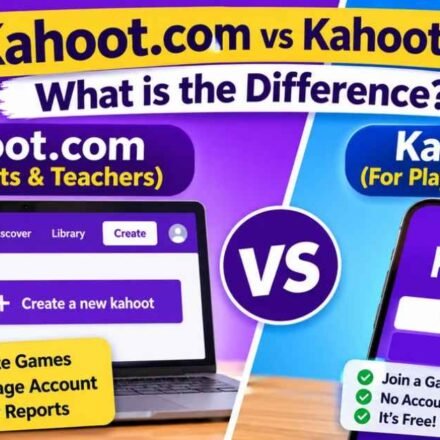
Kahoot.com, Kahoot.it, and Discover are different
These addresses have different purposes.
| Website | What You Can Do |
|---|---|
| kahoot.com | Access Kahoot’s main website and account features |
| create.kahoot.it/discover | Find existing public quizzes |
| kahoot.it | Join games using a PIN or other joining information |
If you’re trying to find a quiz about fractions, use Discover. If someone has already started a game and given you a PIN, use the joining page instead.
Kahoots.it.com is an independent informational website. Our Kahoot learning guides explain related tasks, while Kahoot itself provides the quiz library and game features.
How to Search for Kahoot Quizzes by Topic or Title
You don’t have to remember the exact name of a quiz. Start with the subject you want to study, then add more specific words if the results are too broad.
For example, searching for “math” may return quizzes for several grade levels. Searching for “grade 5 fractions” gives the search a clearer topic and intended audience.
Step-by-step instructions
- Sign in to your Kahoot account.
- Open Kahoot Discover.
- Click the search bar near the top.
- Type a topic or words from the quiz title.
- Submit the search.
- Use the available filters to narrow the results.
- Open a quiz to review its details.
Useful search phrases might include “solar system,” “US state capitals,” or “World War II history.” These are examples of focused searches, not guaranteed quiz titles.
If you remember part of a specific title, try its most distinctive words. Remove unnecessary words or check the spelling when the results don’t match what you’re looking for.
Check the quiz before choosing it
A familiar title doesn’t guarantee that a quiz covers the right material. Open the result and review the available description, number of questions, and question preview.
Look for the topics your class has studied. A quiz with many plays may still include questions that are too advanced or unrelated to your lesson.
Kahoot also has curated collections of ready-made games. Its official ready-made quiz guide explains how Discover and Channels can help you browse content by subject or creator.
How to Find a Kahoot by Creator Username
Sometimes you know who made the quiz but can’t remember its title. In that case, search using the creator’s Kahoot username.
Kahoot’s documentation confirms that entering a username in Discover can show public quizzes created by that account. Search terms are not case-sensitive, so capitalization isn’t usually the problem.
Find a quiz created by your teacher
- Ask your teacher for their Kahoot username.
- Sign in and open Discover.
- Enter the username in the search bar.
- Review the public quizzes returned by the search.
- Open the one that matches your class or assignment.
A creator’s username may be different from their real name. Knowing the correct account username is more useful than guessing how the person registered.
This question has also appeared in Kahoot’s community discussions. An official response explains how usernames help users locate a creator’s public games.
What if you can’t find the creator’s quiz?
Check the username first. Then ask whether the quiz has been made public. Discover searches public content, so a quiz with restricted visibility may not appear even when you enter the correct username.
If the creator shares an accessible quiz link, you can use that instead. Whether the link works for you depends on the quiz’s visibility and any account or workspace restrictions.
How to Filter and Sort Kahoot Search Results
When a search returns too many quizzes, filters help narrow the list. Kahoot’s Discover documentation identifies options for subject, grade, language, creator role, content type, and free or paid content.
You don’t need to apply every filter. Start with the details that matter most, such as the subject and the students’ grade level.
Filter by subject, grade, or language
| Filter | When to Use It |
|---|---|
| Subject | When you need math, science, history, or another topic |
| Grade level | When the quiz must suit a particular school grade |
| Language | When you need questions in a specific language |
| Creator role | When you want to narrow content by creator category |
| Content type | When choosing among quizzes, channels, and courses |
Suppose you’re preparing a science review for middle-school students. Search for the science topic first, then select an appropriate grade range and language.
This gives you a more focused list than relying on the general search phrase alone.
Find free Kahoot quizzes
Not every quiz listed in Discover is free. Kahoot separates content into categories that can include:
- Free content.
- Kahoot!+ AccessPass content, which requires the appropriate subscription.
- Marketplace resources that require an individual purchase.
Use the free-content filter when available and check the label on a quiz before selecting it.
Kahoot also places limits on child accounts. According to its official guidance, these accounts can search a selected collection of reviewed free quizzes but cannot use the full set of search filters.
Sort by relevance, plays, or quality
Kahoot provides three sorting choices:
| Sorting Option | What It Prioritizes |
|---|---|
| Most Relevant | A mix of factors, including popularity and quality |
| Most Played | Quizzes with higher play counts |
| Highest Quality | Quality-related signals, including playtime and favorites |
For a particular lesson, start with Most Relevant. If you’re browsing general trivia, Most Played can help you find games others have used frequently.
Still, check the content yourself. The sort order doesn’t tell you whether a quiz matches every part of your lesson.
Search by curriculum standards
Teachers in the United States can search for Kahoots connected to curriculum standards.
Kahoot’s official documentation identifies supported frameworks that include Common Core State Standards (CCSS), Next Generation Science Standards (NGSS), and Texas Essential Knowledge and Skills (TEKS).
Enter the relevant standard or code into Discover, then review the returned quizzes. A matching tag is a useful starting point, but teachers should still check that the questions match the intended learning objective.
Can you search using part of a word?
Kahoot’s Discover guide describes the asterisk (*) as a wildcard search operator. It can stand in for other characters when searching.
Most users won’t need this feature. Searching with clear topic phrases is usually easier, but the wildcard may help when you remember only part of a word.
How to Search for Kahoots in the Mobile App
Kahoot’s mobile app has a different layout from the desktop website. Its search feature is accessed through the magnifying-glass icon at the bottom of the screen.
The official mobile search guide explains how to search public quizzes by topic or username and review their details.
Find a quiz on your phone
- Open the Kahoot mobile app.
- Tap the magnifying-glass icon.
- Enter a topic or creator username.
- Choose a suggested search term or submit your own.
- Apply the available grade or language filters.
- Tap a quiz to view its details.
The app can suggest search terms as you type. It may also show related topic tags, which can help narrow the results without starting a completely new search.
When you open a quiz, the available details can include its description, creator, number of questions, and a preview of the questions.
Save a quiz for later
If you find a quiz you want to use again, look for the star-shaped Favorites control.
Kahoot’s mobile documentation explains that favorited games can be found in the Your games area. You can return to saved content there instead of searching for the same quiz each time.
Your games may also contain quizzes you created or content shared with you, depending on your account and workspace access.
Why Can’t You Find a Kahoot in Search?
A missing result doesn’t necessarily mean the quiz has been deleted. The creator may have restricted its visibility, or you may be searching in the wrong section of your account.
Start with the simplest checks: confirm the spelling, try fewer search words, and make sure you have the right creator username.
Check whether the quiz is public
Kahoot’s visibility documentation explains how different visibility settings affect search.
| Visibility | Appears in Public Discover Search? |
|---|---|
| Public | Yes |
| Private | No |
| Unlisted | No |
| Organization | No |
An unlisted quiz can be accessed through its link, while organization-only content is restricted to the relevant shared workspace. Private content has its own access restrictions.
If you created the quiz and want people to discover it, our guide explains how to make a Kahoot public. The available settings may depend on your account and subscription.
Check for search or account restrictions
If you see few results or cannot use filters, check whether you have a child account or an active filter that excludes the content you want.
Try a shorter search phrase before assuming the quiz is unavailable. Searching a creator’s username can also help when you know who made the game.
Look in your Library for your own quizzes
If you created the quiz yourself, check your Library rather than relying on Discover.
Kahoot explains that unfinished work may remain in Drafts. Its missing Kahoot help article describes where to look and how to contact support if a game has disappeared.
The same distinction matters for favorites and shared content: your personal Library and the public Discover collection are not identical.
What to Do After Finding the Right Kahoot
Before using a quiz, take a moment to check its questions, reading level, and subject coverage. This is especially useful for teachers who need the material to match a lesson.
Depending on the content and account permissions, you may have options to play, host, save, or share the quiz. Some resources require a subscription or separate purchase.
If someone else needs the same game, you can share a Kahoot using the available sharing options. A direct link can save others from having to repeat the search.
If you can’t find a quiz that matches your requirements, you can create your own Kahoot instead.
For an ordinary quiz search, begin with Discover, use a clear topic or creator username, and check the questions before choosing a game. That is usually enough to find a public quiz that fits your purpose.