












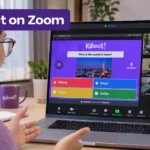









You’re about to host a Zoom meeting and want everyone to play a Kahoot quiz together. The questions are ready, but there’s still a practical problem: how will participants see the game and submit their answers?
You have two options. You can share a Kahoot game from your browser or use the official Kahoot app inside Zoom. Both let people participate remotely, but they work differently.
The best choice depends on your group’s devices and whether your Zoom account allows additional apps. Here’s how to set up either method without confusing your players.
Quick Answer: How to Play Kahoot on Zoom
To play Kahoot on Zoom, start a Zoom meeting and choose either screen sharing or the Kahoot app for Zoom. With screen sharing, open a quiz in Kahoot, select Host live, share the game window, and give players its PIN, link, or QR code. With the Zoom app, invite participants to join Kahoot inside the meeting and answer through its built-in controller. A separate phone isn’t required on supported desktop setups. Hosts need a Kahoot account, but players normally don’t. Check screen visibility and shared audio before starting.
What Do You Need to Play Kahoot on Zoom?
For regular screen sharing, the host needs a Kahoot account, a Zoom meeting, an available quiz, and a stable internet connection. Participants need access to the meeting and a way to submit their answers.
You don’t have to create a quiz from scratch. Kahoot’s Discover section contains ready-made games, although some content and features may require payment.
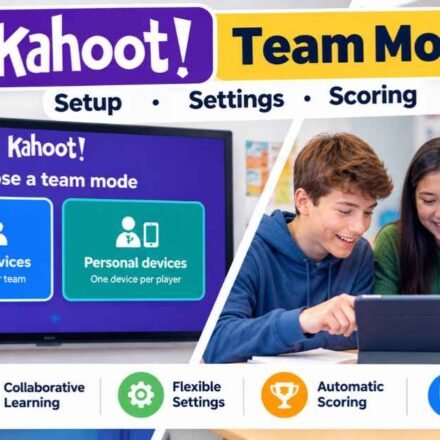
Before inviting everyone, decide which of the following setups suits your group.
| Feature | Screen Sharing | Kahoot Zoom App |
|---|---|---|
| Game runs through | Kahoot website | Zoom integration |
| Player joins through | PIN, link, or QR code | App inside Zoom |
| Answers appear in | Browser or Kahoot app | Zoom’s Kahoot controller |
| Second device required | No, with a suitable setup | No, on supported desktop setups |
| Separate Zoom app installation | No | Yes |
| Best suited for | Mixed devices and classrooms | Desktop meetings |
Regular screen sharing is a good choice when participants have different devices or their school restricts Zoom Apps.
The integrated method is convenient for people using a supported Zoom desktop client. Kahoot’s Marketplace listing currently specifies Zoom desktop version 7.0.5 or later, so older installations may need updating.
How to Play Kahoot on Zoom Using Screen Sharing
Screen sharing lets the host control a live Kahoot quiz while everyone watches through Zoom. Players submit answers separately using Kahoot’s joining website or mobile app.
This method doesn’t require the dedicated Zoom integration, making it useful for virtual classrooms, family trivia nights, and meetings with guests.
Step 1: Start Your Zoom Meeting
Open Zoom and start a meeting. Send participants the invitation link so they can join before the game begins.
Check your microphone and confirm that you can share your screen. If you’re using a school-managed account, screen-sharing permissions may be controlled by an administrator.
Keep Zoom open while you prepare the game in your browser.
Step 2: Choose a Kahoot Quiz
Sign in to Kahoot and open an available quiz from your Library or Discover.
Select Host live, then choose an available hosting experience. Classic is a suitable starting point when everyone should answer individually.
Kahoot will generate a game PIN and joining options after you set up the session. For general live-game controls, see our guide to hosting a Kahoot.
Leave the game lobby open until participants are ready.
Step 3: Share the Game Window
Return to Zoom and click Share or Share Screen in the meeting toolbar.
Select the browser window displaying your Kahoot game. Enable Share sound if you want everyone to hear the game music and sound effects.
Click Share, then confirm that the lobby is visible. Sharing a specific browser window can prevent unrelated tabs and private information from appearing.
Step 4: Let Players Join
Ask participants to open the official Kahoot joining page at kahoot.it or use the Kahoot mobile app.
They can enter the displayed game PIN, follow a direct joining link, or scan the QR code. Each player then chooses or receives a nickname, depending on the host’s settings.
Participants don’t normally need Kahoot accounts to join a live game. Our Kahoot joining guide explains these methods separately.
Wait until the expected names appear in the game lobby.
Step 5: Start Playing
Click Start when everyone is ready.
Players answer questions through their Kahoot interface while the host’s shared screen shows the game, answer reveals, and leaderboard.
Allow enough time for people with slower connections to respond. In a classroom, pause after difficult questions to discuss the correct answer rather than rushing to the next round.
How to Play Kahoot With the Zoom App
Kahoot’s official Zoom integration lets hosts organize quizzes directly within supported Zoom meetings. Participants can view the shared presentation and submit answers using a controller inside Zoom.
According to Kahoot’s July 2026 documentation, the integration supports invitations to meeting participants and doesn’t require those participants to create separate Kahoot accounts.
Install the Kahoot Zoom App
The host can add Kahoot through Zoom’s App Marketplace.
- Sign in to Zoom and open Apps.
- Search for Kahoot! in the Zoom App Marketplace.
- Select the official app and click Add.
- Complete any required authorization.
- Start a Zoom meeting and open Kahoot from My Apps or the Apps panel.
If the app needs administrator approval, a school or company account owner may have to authorize it first.
Start a Kahoot Inside Zoom
Open the Kahoot app during your Zoom meeting and select Host a kahoot.
Sign in to your Kahoot account, then find a quiz in your Library or Discover. Select it and allow the requested screen sharing.
Choose an available game experience and click Start. When Kahoot asks permission to invite meeting participants, select Allow.
The integration sends invitations to participants, including those who join the meeting later.
How Participants Answer Questions
Participants open the Apps panel inside Zoom and add or select Kahoot.
After the host starts the session and shares the game, the integration adds participating users to the Kahoot activity. Nicknames are initially based on Zoom display names but can be changed.
The questions appear on the host’s shared presentation, while the Kahoot controller inside Zoom provides the answer buttons.
This means supported desktop users don’t have to open a separate answer website or keep a phone beside their computer.
Can You Play Kahoot on Zoom With One Device?
Yes. The easiest setup depends on whether you’re using a laptop, desktop, phone, or tablet.
Older tutorials often recommend two devices, but that arrangement isn’t mandatory for every player.
Using One Laptop or Desktop
With the official Zoom integration, participants can watch the game and answer through the Kahoot controller inside their meeting.
For manual screen sharing, you can open Zoom and the Kahoot answer page in separate windows. Arrange them side by side so you can read the presentation and select answers.
This works best on a reasonably sized screen. A larger monitor makes switching between the meeting and answer interface easier.
Using Only a Phone
Playing from one phone can be less convenient because switching between Zoom and another app may hide the shared presentation.
To reduce that problem, the host can enable Kahoot’s setting that displays questions and answer choices on players’ devices.
Players can then read and answer questions in their Kahoot interface without relying on the Zoom presentation for every question.
The exact experience still depends on the phone and its multitasking support. Don’t assume every mobile device can display Zoom and Kahoot simultaneously.
Enable Questions on Player Devices
Kahoot provides a free setting called Show questions & answers on participants’ devices.
Open the game’s settings using the gear icon and enable that option before playing.
Once enabled, players can view the questions and answer choices directly on their devices. The host’s shared screen still displays the correct-answer reveal and leaderboard.
Our guide to showing Kahoot questions explains this setting in greater detail.
Best Settings for a Smooth Zoom Kahoot Game
A remote quiz works better when the questions are readable, the sound is clear, and the host gives people enough time to respond.
A short test before inviting a large group can reveal problems that would otherwise interrupt the game.
Check Screen Sharing and Audio
Zoom’s Share sound setting sends the host computer’s audio to meeting participants. Enable it when sharing a browser-based Kahoot if you want the music to be audible.
Avoid enabling Optimize for video sharing during an ordinary quiz. Zoom recommends that option for video playback and warns that it can make static text blurry.
If the game music is too loud, lower it in Kahoot. It’s easier to explain answers when the music isn’t competing with your voice.
Choose a Suitable Game Experience
Classic works for individual competition. Accuracy places more weight on correct answers than speed, which can be useful when participants have different internet connections.
Team experiences may suit classes or groups that want to discuss answers together, where available under the host’s plan.
Choose the experience before the game starts, and check any question timers. Short timers can make remote activities harder for people with slower connections.
Example: A Short Virtual Classroom Quiz
Imagine a teacher reviewing the solar system with 20 students.
The teacher prepares ten questions, starts a Zoom meeting, and shares the Kahoot lobby. Students enter the PIN, and the teacher confirms that everyone can read the first question.
After each difficult question, the teacher asks students to explain the correct answer. The results help identify topics needing another explanation.
For a friends’ trivia night, the setup is almost identical. The questions change, but the hosting and joining steps remain the same.
Common Kahoot Zoom Problems and How to Fix Them
Most difficulties come from sharing the wrong window, missing app permissions, incorrect joining information, or sound settings.
Identify which part isn’t working before restarting the entire meeting.
The Kahoot App Is Missing From Zoom
Check whether the official Kahoot app appears in Zoom’s Marketplace or My Apps.
Make sure your Zoom desktop client meets the app’s current requirements. If you’re using an organization-managed account, ask whether third-party apps are restricted.
When installation isn’t permitted, regular screen sharing is a practical alternative.
Participants Can’t See the Questions
Confirm that Zoom is sharing the window containing the actual Kahoot game.
If players can see only answer buttons on their phones, enable Kahoot’s player-device question-display setting.
Remember that screen sharing and player-side question display are separate controls. Enabling one doesn’t automatically configure the other.
Nobody Can Hear the Game Music
Check that the Kahoot browser tab isn’t muted and that the computer’s audio is working.
Then open Zoom’s sharing controls and enable Share sound. You can adjust this setting during an active share on supported devices.
If participants hear an echo, check for two unmuted devices in the same room.
Someone Can’t Join the Game
For manual hosting, confirm that the player is using the current PIN. A PIN from an earlier session may no longer work.
You can share the direct joining link or QR code instead. Also check whether late joining has been locked in the game’s settings.
For the Zoom integration, confirm that the participant has access to the Kahoot app and accepted the required invitation.
Zoom Ends Before the Quiz Finishes
Most Zoom meetings hosted by Basic free-license users have a 40-minute limit.
This is a Zoom restriction, not Kahoot’s question timer. Keep free-account activities comfortably within the available meeting duration.
Kahoot’s premium features and participant limits are separate. Our guide to Kahoot’s free features covers those differences.
Frequently Asked Questions
Can Students Join a Kahoot Zoom Game Without Signing In?
Yes. Participants joining an ordinary Kahoot live game generally don’t need Kahoot accounts. The host must sign in to run the game, and Zoom integration users may need permission to add the app.
Can Friends in Different Countries Play Together?
Yes. People can join the same Zoom meeting and Kahoot session from different locations. A reliable connection is helpful, particularly for timed questions and live scoring.
Can You Record a Kahoot Game on Zoom?
Zoom supports meeting recording when the account and meeting settings permit it. Ask participants for appropriate consent and follow your school’s or organization’s privacy rules, especially when children are involved.
Can Someone Join After the Quiz Starts?
A player may join late if the host hasn’t locked joining. They will miss questions that have already been played, so allowing a short joining period before starting is usually preferable.
Final Takeaway
For classrooms and mixed-device groups, Zoom screen sharing offers a straightforward way to run Kahoot. Players join through Kahoot and submit answers while watching the shared presentation.
The official Zoom app offers a more integrated desktop experience, with answer controls inside the meeting.
Whichever method you choose, test the display, joining process, and sound before starting. If you need guidance on other features, browse our Kahoot learning guides.
Publisher note: Kahoots.it.com is an independent informational website and is not affiliated with Kahoot! or Zoom.