
















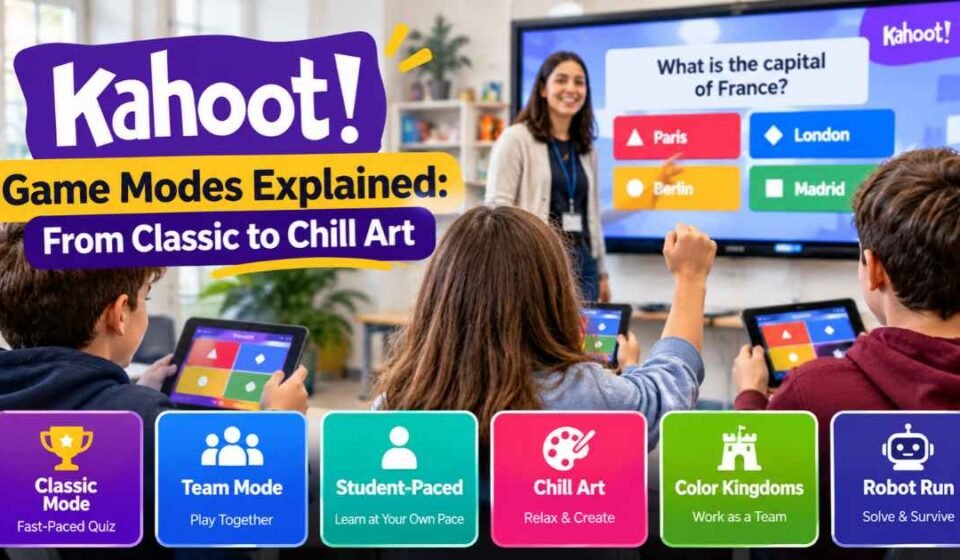

When educators first started using digital trivia in the classroom, the format was identical across every single platform. A question appeared on the smartboard, a timer ticked down quickly, and students raced to tap the correct color on their phones.
While that fast-paced format creates high energy, it also causes severe anxiety for students who process information slowly. To solve this, the developers dramatically expanded the platform beyond simple multiple-choice speed tests.
The software now includes cooperative survival games, territory control challenges, and untimed painting exercises. This allows teachers to change the entire energy of the room with a single click.
Unfortunately, many teachers avoid using these newer options. They simply do not understand the rules or fear the technology will fail during a live lesson.
This guide breaks down every available format on the platform. We will explain the mechanics of the traditional quizzes and the newer gamified mini-games, so you can choose the exact right activity for your classroom environment.
Quick Answer: What Are the Kahoot Game Modes? Kahoot offers traditional game modes and interactive mini-games officially called “Experiences.” Traditional modes include Classic (individual competition), Team Mode (group play), and Student-Paced (asynchronous homework). The gamified Experiences change the rules entirely. Collaborative Experiences like Color Kingdoms and Robot Run force the room to work together. Calm Experiences like Chill Art and Accuracy mode remove the speed timer to reduce student anxiety. While Classic is free, most gamified Experiences require a premium Kahoot!+ or EDU subscription.
The Evolution of Kahoot: Introducing “Experiences”
If you search your host settings for “game modes,” you might be confused by the current interface. In recent updates, Kahoot officially rebranded its gamified modes as “Kahoot! Experiences.”
When the Kahoot host launches a quiz from their library, the lobby screen now presents a grid of colorful icons. These icons represent the different Experiences available to play.
The traditional multiple-choice quiz still exists, but the platform now treats it as just one of many different ways to interact with your question deck.
The best part is that the software uses the exact same quiz questions you already created. You do not need to build a new quiz to play a new mode. You simply select the quiz you want, click “Start,” and choose how you want the audience to experience those questions.
Traditional Kahoot Game Modes
The traditional modes focus strictly on the questions and answers. There are no avatars to move, no territories to capture, and no extra mechanics to distract the audience.
These standard formats are best for formal reviews, quick exit tickets, and serious data collection. They are also the most reliable options if your school has a slow internet connection.
Classic Mode (High Competition)
Classic is the original format everyone recognizes. Every player uses their own device and competes individually against the entire room.
The scoring system prioritizes both accuracy and reaction speed. A student who answers correctly in one second receives significantly more points than a student who answers correctly in five seconds.
This creates a highly competitive, loud environment. It works perfectly for reviewing simple vocabulary, but the ticking timer often punishes students working through complex math equations.
Team Mode (Shared & Personal Devices)
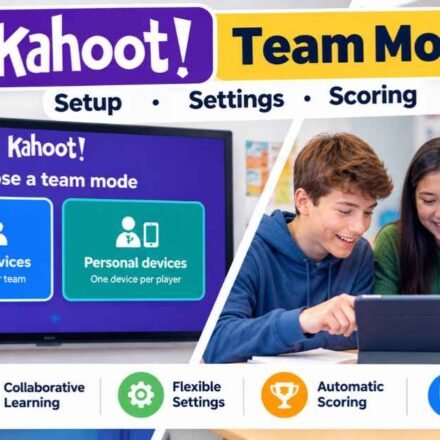
Team Mode shifts the focus from individual speed to group consensus. Instead of seeing thirty individual names on the leaderboard, you only see the names of the competing groups.
You can play this mode in two different ways depending on your available hardware. If your classroom lacks enough laptops for everyone, students can huddle around a single shared device to submit their group answer.
If every student has a phone, they can use their personal devices to contribute to a combined average score. If you want to understand the exact setup differences between these two hardware options, read our complete guide on how to configure Kahoot team mode.
Student-Paced Assignments (Asynchronous Play)
Not every game happens live in a classroom. Teachers frequently use the platform to assign homework or weekend review sessions.
The Student-Paced mode, often referred to as an “Assignment,” allows students to complete the quiz on their own schedule. The questions and the multiple-choice options appear directly on the student’s screen.
They do not need to look at a teacher’s smartboard to read the prompts. The host simply sets a deadline, copies a web link, and posts it to their learning management system. The platform tracks their scores and generates a report once the deadline passes.
Gamified Experiences: Best Modes for Collaboration
The newer gamified Experiences transform your quiz into a video game. Students still answer your educational questions, but they use the points they earn to play a larger interactive game on the main smartboard.
The collaborative modes are designed to make the entire room work together to achieve a shared goal. These are perfect for building classroom culture.
Color Kingdoms
Color Kingdoms splits the classroom into two massive teams: Red and Blue. As students answer your trivia questions correctly on their own devices, they earn virtual troops.
They use these troops to capture tiles on a map displayed on the main projector. The game becomes a massive tug-of-war.
The team that captures the most territory before time runs out wins. It encourages students to answer quickly, but the team aspect removes the pressure of individual leaderboards.
The Lost Pyramid
The Lost Pyramid is a purely cooperative game. The entire classroom works together as one giant team to climb a virtual pyramid on the smartboard.
Students must answer questions correctly on their phones to move up the steps. If students answer incorrectly, the group loses energy and falls behind schedule.
This mode forces students to talk to each other. Highly competitive students will actually help their struggling peers understand the material so the whole class can reach the top.
Submarine Squad and Robot Run
Submarine Squad is a chaotic survival game. The class controls a single submarine sinking to the bottom of the ocean on the main screen.
To keep the submarine afloat, students must rapidly answer trivia questions on their devices to generate power.
Robot Run follows a similar survival mechanic. The class controls a robot running through a dangerous factory. By answering questions, students help the robot dodge obstacles and escape. These modes are very loud, making them great for end-of-the-week celebrations.
Gamified Experiences: Best Modes for Calm and Focus
Sometimes teachers need the room to quiet down. If you want students to focus deeply on the material without the anxiety of a ticking clock, the platform offers several modes designed for calm reflection.
Accuracy and Confidence Modes
Many teachers requested a way to turn off the speed timer so students could read long paragraphs without rushing. The platform responded with Accuracy Mode.
In this format, the timer is completely removed. Students earn points simply for getting the answer right. Speed no longer dictates the winner, leveling the playing field for students who process text slower.
Confidence Mode takes this concept a step further. After a student selects an answer, the screen asks them how confident they feel about their choice.
If they say they are highly confident and get it right, they earn maximum points. If they guess incorrectly while claiming high confidence, they lose points. This encourages metacognition and honest self-assessment.
Chill Art
Chill Art is widely considered the quietest mode on the entire platform. As students answer questions correctly on their phones, they collect virtual paintbrushes.
They use these paintbrushes to slowly reveal a masterpiece painting on the main classroom screen. There is no timer and no penalty for answering slowly.
Students simply tap their screens to paint by numbers. This creates a highly relaxed, meditative atmosphere that is perfect for stressful exam weeks.
Tallest Tower
Tallest Tower allows students to use their correct answers to drop building blocks on the main screen. The goal is to build the highest tower possible before the session ends.
While there is an overall game timer, the primary focus is on the physics puzzle of stacking blocks safely.
Students become highly focused on making sure their block doesn’t topple the tower, rather than worrying about beating their peers on a trivia leaderboard.
Playing Game Modes in Solo Practice
The interactive Experiences are not restricted to the live classroom environment. Students can access several of these mini-games at home for self-paced study.
By mixing up the formats, you completely change how students Kahoot play during their homework hours. You can transform a stressful study session into an engaging activity.
When a student opens the mobile app and selects a quiz for solo practice, the app allows them to play specific modes alone. They can launch Tallest Tower, Treasure Trove, or Chill Art against computer-controlled opponents.
This solo functionality makes the mobile app a powerful tool for exam review. Students are much more likely to review their flashcards voluntarily if they unlock a virtual reward at the end of the session.
Important Limitations: Question Types and Paywalls
Before you plan an entire lesson around a specific gamified Experience, you must understand two major technical limitations.
First, the gamified mini-games do not support every single question type. Experiences like Chill Art and Color Kingdoms work perfectly with standard multiple-choice quizzes, True/False statements, and Slider questions.
However, they do not support open-ended Type Answer questions or Brainstorming clouds. If your quiz contains unsupported question types, the mini-game will simply skip those slides during gameplay.
Second, access to these modes depends entirely on your subscription tier. While the Classic quiz format and basic Team Mode are permanently free, nearly all the interactive Experiences sit behind a paywall.
Teachers generally need an active Kahoot!+ or EDU premium subscription to unlock modes like Submarine Squad, The Lost Pyramid, and Accuracy Mode.
Frequently Asked Questions
Can I switch game modes in the middle of a live quiz? No. You must choose your game mode or Experience in the main lobby before generating the game PIN. Once the students join the lobby and the first question begins, the format is permanently locked. To change modes, you must end the game, kick everyone out, and restart the quiz from your library.
Do game modes affect the final spreadsheet report? No. Regardless of which gamified Experience you choose, the platform still records the raw academic data in the background. When the game finishes, you can download the standard spreadsheet report. It will show exactly which students answered which questions correctly, ignoring the mini-game mechanics entirely.
Can students play Color Kingdoms on a computer browser? Yes. While the Solo Practice modes are heavily optimized for the mobile app, students participating in a live, teacher-hosted game can play any Experience using a standard desktop browser. They simply go to the main website and enter the PIN exactly as they would for a Classic game.




[…] Kahoot Username (And Important Rules) How to Randomize Kahoot Questions (and Answers) Kahoot Game Modes Explained: From Classic to Chill Art How to Show Kahoot Questions on […]
[…] Kahoot Username (And Important Rules) How to Randomize Kahoot Questions (and Answers) Kahoot Game Modes Explained: From Classic to Chill Art How to Show Kahoot Questions on […]
[…] Kahoot Username (And Important Rules) How to Randomize Kahoot Questions (and Answers) Kahoot Game Modes Explained: From Classic to Chill Art How to Show Kahoot Questions on […]