





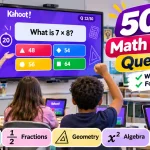



When you launch a live trivia game in a classroom, the standard setup requires a massive projector screen. The teacher displays the question and the multiple-choice text on the smartboard at the front of the room.
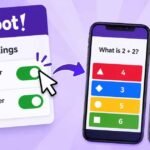
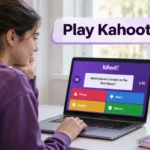
Meanwhile, the participating students look down at their smartphones, tablets, or Chromebooks. By default, their personal screens are completely blank except for four large, colored shapes.
Students must read the text on the smartboard, match the correct answer to the corresponding color, and then tap that color on their personal phone. This classic setup works perfectly in a traditional, in-person classroom environment.
However, it creates massive problems if you are teaching remotely over a video call. It also creates a barrier for visually impaired students who cannot read a distant projector. If participants cannot clearly read the main host screen, they simply cannot play the game.
Fortunately, the developers added a simple setting to solve this exact issue. This guide explains how to push the full question and answer text directly to every participant’s personal device, eliminating the need to rely on a shared projector.
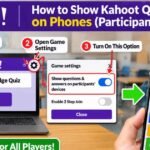
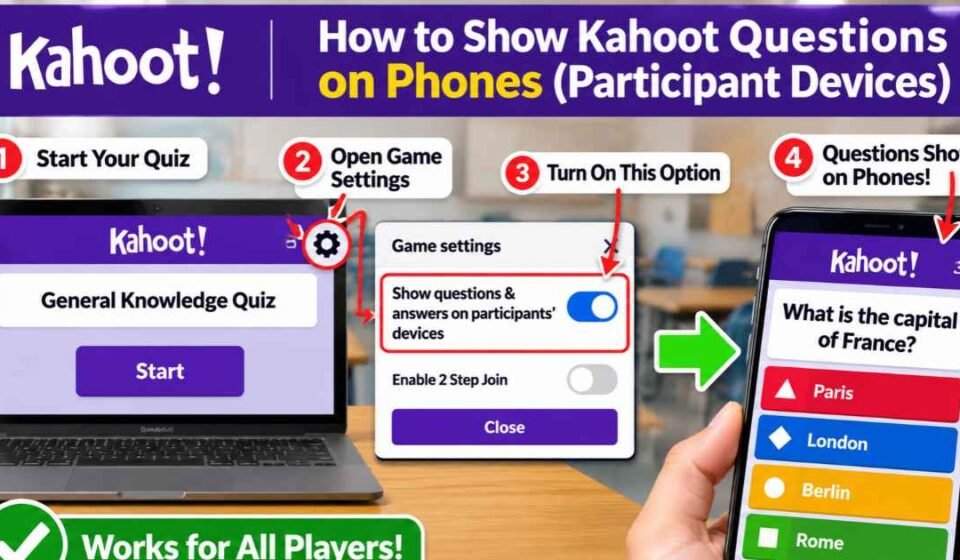
Quick Answer: How to Show Kahoot Questions on Phones To show the actual question and answer text on participant phones during a live game, you must change a setting in the host lobby. Before you generate the game PIN, look for the small gear icon on the screen to open the Game settings menu. Find the option labeled “Show questions & answers on participants’ devices” and click the toggle to turn it on. This free setting pushes the full text to everyone’s screen, and it automatically saves for all your future games.
The Problem with Colored Shapes
To understand why this setting is so important, you must understand the limitations of the default game board. The original software was designed specifically to force students to look up at the front of the classroom.
By removing the text from the student devices, the developers wanted to create a shared social experience. Everyone looks at the same screen, reads the same question, and experiences the countdown timer together.
However, this design introduces a high cognitive load, especially for younger students. A first-grade student must read the board, find the correct answer, remember that the answer is inside a red triangle, look down at their iPad, and tap the red triangle.
This visual translation step takes valuable seconds. It often leads to students tapping the wrong color by accident, even when they know the correct answer.
Furthermore, if a student sits in the back of a large lecture hall, they might struggle to read the standard font size on the projector. Pushing the text directly to their personal screens removes this physical barrier entirely.
Step-by-Step: How to Show Questions on Player Screens
The setting to push text to individual screens is not found inside the creator studio where you type your questions. You must enable this feature right before you launch a live game.
Because this feature relies on the host’s internet connection to distribute the text, only the Kahoot host can turn it on. Individual players cannot activate this feature from their own phones.
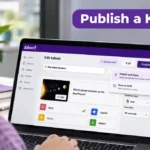
First, log into your account on a desktop web browser and open your personal library. Find the quiz you want to host and click the “Start” button.
This action will open the lobby screen where you normally choose your game mode, such as Classic or Team Mode. Do not select a game mode yet.
Instead, look for the small gear icon located on the lobby screen. Clicking this gear icon opens the Game settings menu, which controls the rules for your temporary lobby.
Scroll through this settings menu until you find a specific toggle switch clearly labeled “Show questions & answers on participants’ devices.” Click the toggle so it turns on.
Once the toggle is active, you can close the settings menu and generate the game PIN. When players join and the first question begins, they will see the full text directly above the colored shapes on their personal screens.
Does This Setting Save for Future Games?
One of the most common questions teachers ask in community forums is whether they have to remember to click this toggle every single class period.
Fortunately, you do not. According to official platform documentation, this specific device setting is completely persistent. Once you turn the toggle on, the system remembers your preference for your account.
The next time you log in to host a completely different quiz, the text will automatically display on participant phones. You do not have to touch the gear icon again.
If you ever want to return to the classic “colored shapes only” format to encourage students to look at the front board, you must manually open the settings menu and turn the toggle off.
Why You Should Enable This Setting
While the classic format forces students to keep their heads up, modern teaching environments require significantly more flexibility. Enabling this setting solves two major logistical problems for educators and corporate event hosts.
Fixing the Zoom “Two Device” Problem
If you teach online classes or host corporate webinars, you are likely intimately familiar with the “two-device” dilemma.
When a host shares their screen over a video conferencing tool to show the main game board, remote participants run into a major physical barrier. They cannot easily watch the shared video screen and tap the colored shapes on their own device at the exact same time.
Before this setting existed, remote students were forced to use a laptop to watch the Zoom call while simultaneously holding a smartphone in their hand just to submit their answers.
This frustrated parents and completely locked out students who only had access to a single school-issued Chromebook. Trying to run a split-screen with Zoom on one side and a web browser on the other usually resulted in accidental clicks.
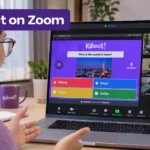
If you are hosting a remote session, enabling this setting is a crucial step when learning how to play Kahoot on Zoom.
By pushing the text directly to the participant’s device, the student can join the Zoom call, minimize the video window entirely, and play the whole game on a single screen without needing a second device.
Accessibility and Screen Readers (Read Aloud)
Pushing text to individual devices is not just about convenience for remote workers. It is a critical accessibility requirement for modern classrooms.
When a teacher projects questions on a smartboard in a massive auditorium, students sitting in the back row often struggle to read the text. Sending the questions directly to their phones ensures every student has equal access to the material.
More importantly, this simple settings change dramatically improves how visually impaired students Kahoot play the game alongside their peers.
By default, third-party screen readers cannot interpret a smartboard projected across a physical room. When you push the actual text data to the participant’s device, it allows the native accessibility features built into modern smartphones to function properly.
The mobile app includes a built-in “Read Aloud” function. When the text is pushed to the phone, this feature can read the question and the answers aloud through the student’s headphones. This allows visually impaired students, early readers, and English language learners to participate fully.
The Player Experience: What Do Students See?
If you have never used this setting before, you might wonder how it changes the visual interface on the student’s personal device.
When this setting is turned off, the student’s phone screen is divided into four massive color blocks. When you turn this setting on, the screen layout shifts to accommodate the new information.
The top half of the student’s screen will display the text of your question. If you included an image or a YouTube video with your question, a smaller thumbnail of that media will also appear below the question text.
The bottom half of the screen will display the four colored shapes. However, instead of being blank, the text of the multiple-choice answers is written directly inside the shapes.
Because the screen must fit more information, the clickable color blocks are slightly smaller than they are in the classic mode. However, they remain large enough for easy tapping on standard smartphones and tablets.
Do I Need to Turn This On for Assigned Kahoots?
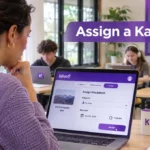
Teachers frequently use the platform’s asynchronous “Assign” feature to send quizzes home as self-paced weekend homework.
You do not need to worry about this setting when creating a homework assignment. The “Show questions & answers” toggle only applies to live, synchronous games hosted in a real-time lobby.
When a student opens an assigned, student-paced challenge at home, the platform automatically displays the full text of the questions and the answers on their screen.
The system understands that there is no teacher present to project a main board, so it defaults to the single-screen experience automatically. You do not need to toggle any special settings to make this happen.
Troubleshooting: Can Showing Questions Cause Lag?
While this feature solves massive problems for remote learning and accessibility, it does introduce a minor technical drawback. Game hosts must understand this limitation before using the feature in a high-stakes environment.
According to official support documentation, pushing the text and media to every individual device requires significantly more local bandwidth.
In a classic game, the heavy lifting happens entirely on the teacher’s computer. The teacher’s desktop loads the text, downloads the high-resolution images, and streams the YouTube videos. The students’ phones only load four tiny colored squares, requiring almost zero data transfer.
When you toggle this setting on, you force thirty different smartphones to simultaneously download the text and the images over the school’s local WiFi network at the exact same time.
Reducing Network Lag in the Classroom
If your school has an older network router or struggles with limited bandwidth, this simultaneous download can cause micro-delays.
Some students might see the question appear on their phone a second or two later than their peers. If you are running a highly competitive game where milliseconds matter, this slight delay can frustrate fast players.
To reduce this lag, ask your students to close out of background apps like TikTok or Spotify before they enter the game PIN.
Additionally, ensure all participant devices are connected to the main school WiFi network rather than a throttled guest network. If your classroom WiFi is notoriously weak, you should test this feature with a small group of five students before relying on it for a final exam.
Frequently Asked Questions
Do I have to pay to show questions on participant screens? No. While the platform locks many interactive game modes behind premium subscriptions, this specific device setting is considered a core accessibility feature. It is 100 percent free and available to all basic account users.
Can participants turn this setting on themselves? No. Participants have absolutely no control over how the game data is distributed to their phones. The host has absolute control over the lobby settings. If a student needs the text on their phone for accessibility reasons, they must ask the teacher to click the gear icon and enable the toggle before the game begins.
Will this setting work if students use a web browser instead of the mobile app? Yes. The platform is highly responsive. Whether a student enters the game PIN on the official iOS app, an Android web browser, or a desktop Chromebook, the text will successfully appear above the colored shapes. The only requirement is that the host enabled the setting in the lobby.
Does this setting work for True/False questions? Yes. The setting applies to all standard question types. For a True/False question, the prompt will appear at the top of the participant’s screen, and the blue “True” and red “False” buttons will feature the text directly on them.
Can I turn this setting off in the middle of a live game? No. You cannot access the main lobby settings once the first question begins. If you accidentally left the setting on and it is causing terrible bandwidth lag for your students, you must end the current game. You will have to return to your library, click start, open the gear icon, turn the setting off, and generate a brand-new game PIN for the class.